
rezStream Cloud allows you to exempt fees the same way you can exempt taxes. Anywhere tax exemptions are available, fee exemptions can also be applied, making it easy to waive charges such as Property Fees for VIP guests or Service Fees for owner stays.

Fee exemptions can be applied when:
-
Editing an invoice line item
-
Editing a package line item
-
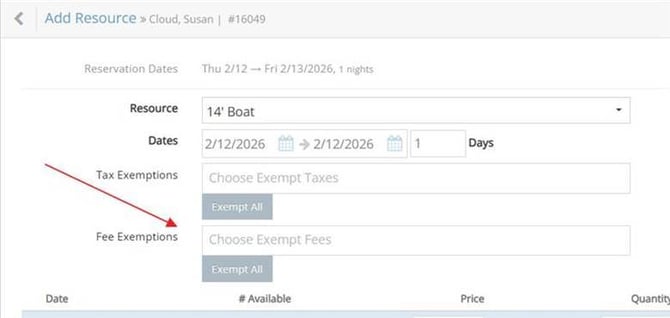
Adding a resource to a reservation
-
Applying default tax and fee exemptions to an entire invoice
Applying Fee Exemptions to an Invoice Line Item
-
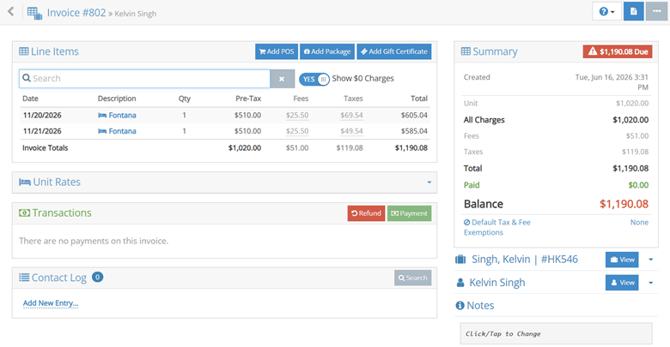
Open the invoice.
-
Locate the invoice line item you need to update.

-
Select the option to edit the line item.

-
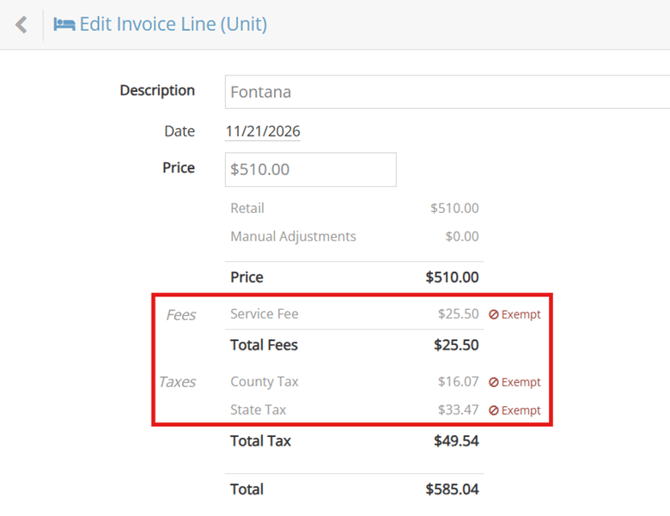
Review the Tax and Fee Exemption options.
-
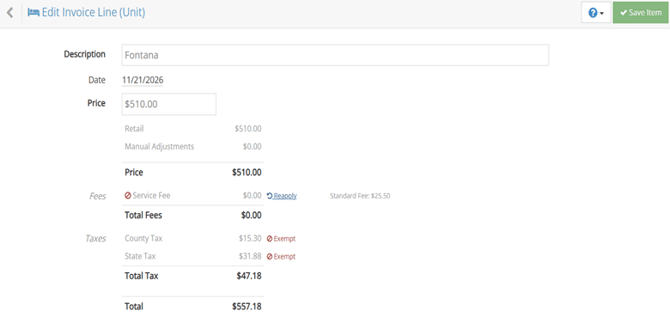
Select the red Exempt to remove the fee amount.
-
Save your changes.
Once saved, the selected fee exemption will apply to that line item.
Applying Fee Exemptions to a Package Line Item
-
Open the invoice.
-
Locate the package line item.
-
Edit the package line item.
-
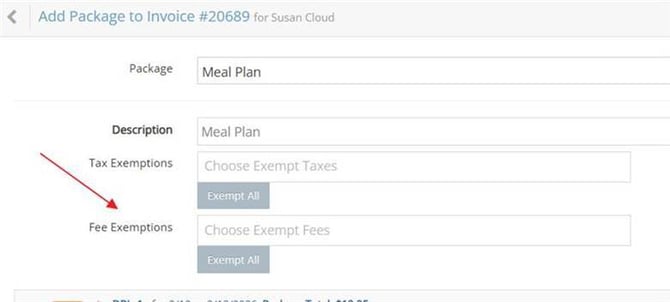
Select the applicable fee exemption.
-
Save your changes.
The fee exemption will apply only to the selected package line item.
Applying Fee Exemptions to a Resource in Reservation
-
Open the Reservation.
-
Add Resource
-
Review the Tax and Fee Exemption options.
-
Select the applicable fee exemption.
-
Save your changes.
Applying Default Tax and Fee Exemptions to an Entire Invoice
-
Open the invoice.
-
Select the option for Default Tax & Fee Exemptions.
-
Choose the taxes and/or fees that should be exempt.
-
After making your selections, choose how the exemption should be applied.

You will see three options:
Option 1: Apply to All Existing Line Items
This applies the selected exemptions to all existing line items on the invoice.
This is the most common option.
Option 2: Update Existing Lines but Keep Existing Exemptions
This updates the invoice with the new default exemptions while keeping any exemptions that were already manually applied to individual line items.
Use this option if you have already customized exemptions on certain invoice lines and do not want those changes removed.
Option 3: Do not update Existing Invoice Lines
This does not update any existing invoice line items.
The selected exemptions will only apply to new items added to the invoice going forward.

How to Identify Exemptions on an Invoice
If an invoice line has a tax or fee exemption, you will see an exemption icon next to the Daily Tax or Fee total.

Hover over the exemption icon to see which taxes or fees have been exempted on that line.

You can also hover over the Daily Tax or Fee total to view a detailed breakdown of the charges; any exempt tax or fee will display as a $0.00 amount. Exempted fees will also display as $0.00 in reports.

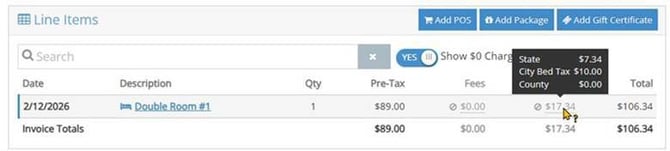
Currently, rezStream Cloud PMS does not provide a dedicated Fee Exemption Report like it does for tax exemptions. However, any fees that have been exempted will still appear in reservation and report details with an amount of $0.00, providing visibility into when a fee exemption has been applied.
Important Notes:
- Fee exemptions can be applied at the invoice level or line-item level.
- Line-item exemptions may vary across the same invoice.
- Always review the invoice after applying exemptions to confirm the correct fees and taxes are showing as exempt.
Whenever changes are made to taxes, fees, tax groups, fee groups, rates, POS items, or resources, you may need to run the appropriate recalculation process for the changes to take effect. If updates do not appear as expected, use either Recalculate Taxes and Fees or Recalculate Rates, depending on the type of change made. The Recalculate Taxes and Fees option can be found under Configuration → Rates and Taxes → Taxes (or Fees).