
Look at the same report every day, week or month? Subscribe to it, and rezStream Cloud will email it to you automatically on the schedule you choose.
Time needed: about 10 minutes
On this page
Part 1: Open Report Subscriptions
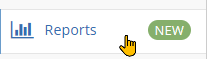
- Click Reports in the menu on the left.
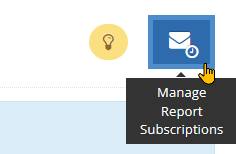
- Click Manage Report Subscriptions in the upper right corner.
Part 2: Add a new subscription
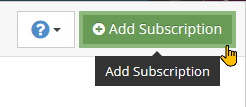
- Click Add Subscription.
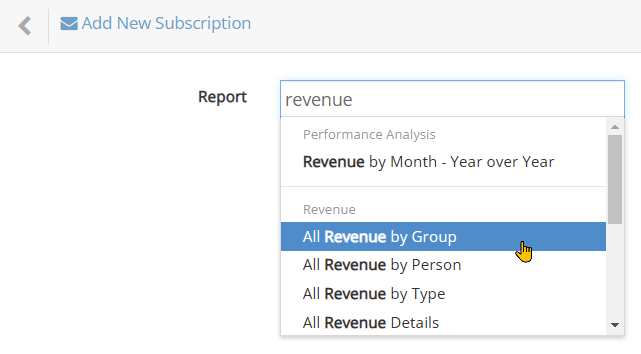
- In the Add New Subscription window, choose the report you want sent.
- Set up the three sections that appear:
Section What to know Report Parameters Each report has its own settings for what data it includes. Most have a Time Period that sets the date range. Example: with This Month, the report covers the first through the last day of the month it's created in. Schedule Send it Daily, Weekly or Monthly, at the time you choose. The time uses your business's time zone, set in Config → Business Settings. Email Enter the Recipient Emails. Recipients don't need to be rezStream Cloud users. Choose a Report Attachment Type, and change the email's Subject and Body if you'd like. - Click Save.
Letter codes you can use in the email Body:
- {parameterDescription}: describes the report's parameters, including each parameter's name, the option you chose, and the actual values used when the report was created
- {scheduledDateTime}: the time the report was scheduled to send, in your business's time zone
- {currentDateTime}: the time the report was actually created and sent, in your business's time zone
Part 3: Edit or delete a subscription
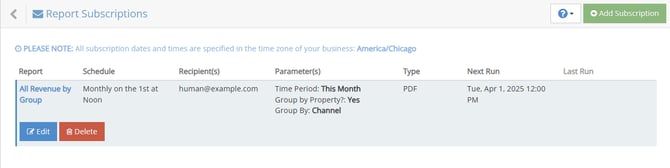
Click any subscription in the list to open it, then click Edit or Delete.
You can't change the report itself
You can change a subscription's Parameters, Schedule or Email settings, but not which report it sends. To send a different report, delete the subscription and add a new one.
Still need help?
Call us at 303-872-0220 x 2 or send us a support request. We're happy to walk you through it.
Related articles