
For group reservations or reservations with more than one unit, add group members so you can send them letters and choose them when taking payments.
Time needed: about 3 minutes
How it works
First, add group members to the reservation. Once they're added, you can choose them when sending letters and taking payments.
Part 1: Add group members
1Open the reservation
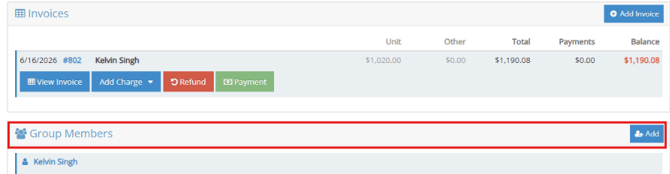
From the Reservations tab, click the reservation. Under Group Members, click Add.
2Add the members
Search for a person already in your system, or add a new member. Then click Done in the upper right corner.

Part 2: Send letters to group members
1Choose the person
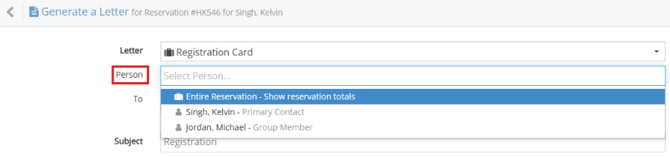
In the letter, the Person field now has a drop-down list of your group members.
2Add members to the email
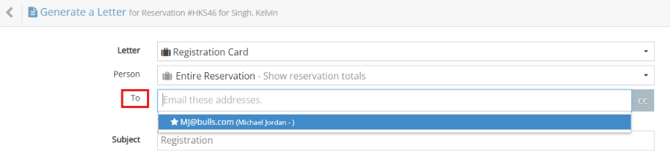
Click in the blank space under To to add any group member to the email.
Part 3: Take a payment from a group member
1Choose who is paying
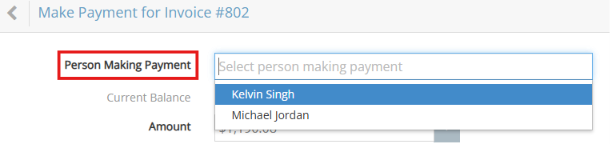
When you make a Payment, the drop-down list lets you choose any of the group members.
✓You're done!
Your group members are set up for letters and payments.
Still need help?
Call us at 303-872-0220 x 2 or send us a support request. We're happy to walk you through it.
Related articles