
Set up your Occupancy Map to show the information that matters most to your property: reservation and unit colors, weekend shading, Clean/Dirty, Book by Type, and exactly what each reservation displays.
Time needed: about 10 minutes to read
Open the Occupancy Map Settings
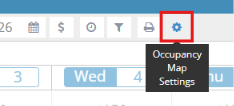
On the Occupancy Map, click the gear icon in the toolbar.
On this page
Reservation Colors
Standard Colors
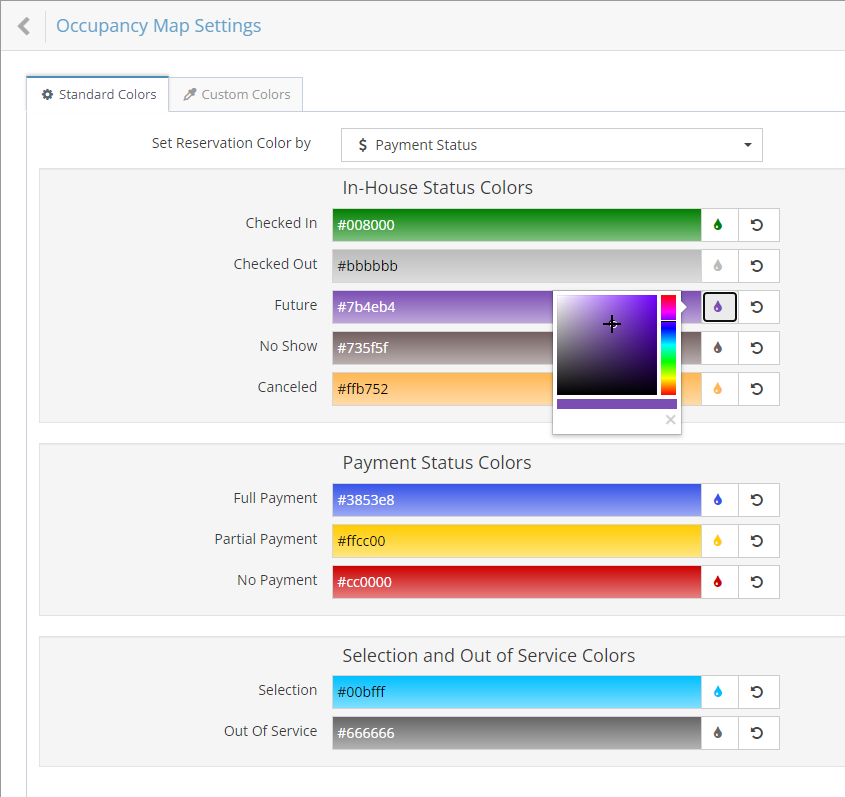
Use Set Reservation Color by to choose how reservations are colored:
| Color by | Reservation color shows | The icon shows |
|---|---|---|
| In-House Status | In-house status, using your In-House Status Colors | Payment status: a money icon  in the bottom right corner, colored by your Payment Status Colors |
| Payment Status | Payment status, using your Payment Status Colors | In-house status: no icon (not checked in), checked-in  or checked-out  , colored by your In-House Status Colors |
Selection and Out of Service Colors set the New Selection color (used when creating or selecting reservations) and the Out of Service block color.
Custom Colors
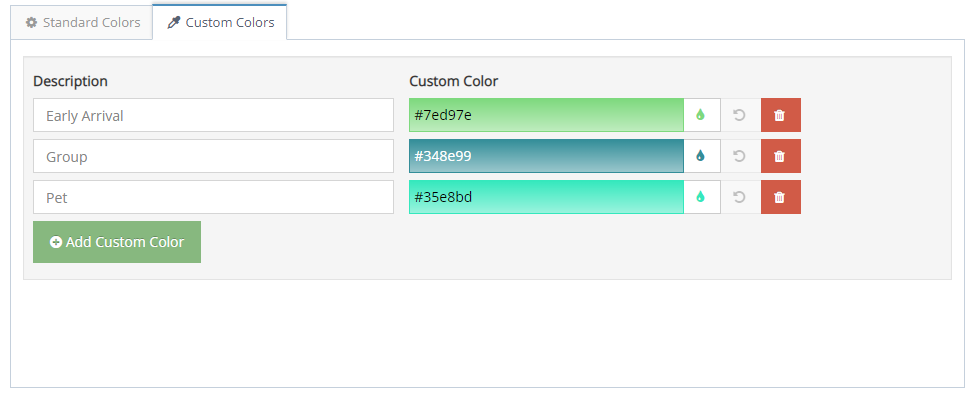
Create your own list of labeled colors to apply to any reservation's unit assignment, for things like groups or weddings, early or late arrivals, guests with pets, or anything you want to notice right away.
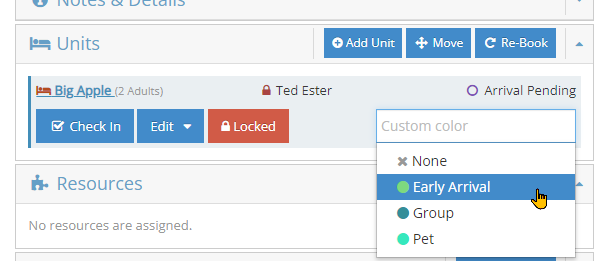
Once your list is set, choose a Custom Color for any unit assignment in a reservation:
Unit Colors
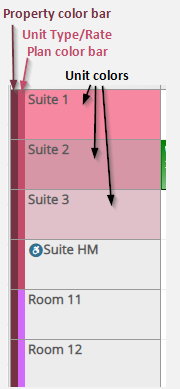
Unit names appear in headers down the left side of the map. Color them by Property, Unit Type/Rate Plan, individual unit, or any combination. For example, to spot units with the same rates, show location or building level, point out amenities or views, or give each unique unit its own color.
Under Color Options, turn on any combination of three options:

| Option | Where it appears |
|---|---|
| Property Color Bar | Far left edge of the unit header |
| Rate Plan (Unit Type) Color Bar | Next to the Property Color Bar, or on the far left if the Property Color Bar is off |
| Unit Color | The rest of the unit header |
If neither bar is on, no color bars appear. Here's all three turned on:
Color all units at once
In the Units section, use Set Colors From to color every unit header by Property or Rate Plan (Unit Type). Example: this setup…
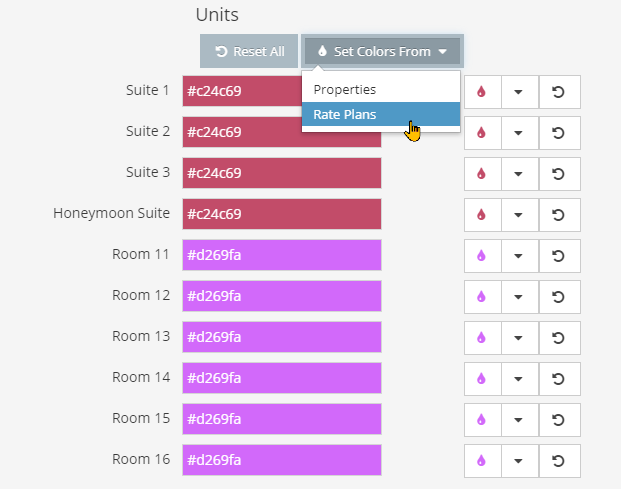
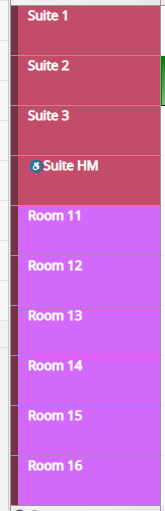
…with all three options on, for units in one property, looks like this on the map:
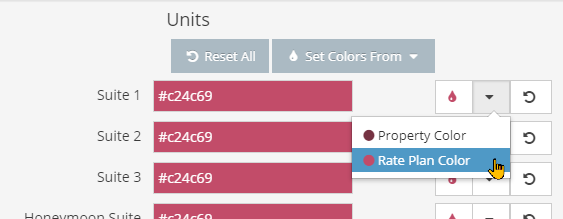
Color one unit at a time
Use the drop-down next to any unit to apply its Property or Rate Plan (Unit Type) color to just that unit.
Display Settings
| Setting | What it does |
|---|---|
| Weekend Days | Shades the days you choose, so weekends stand out. |
| Show Clean/Dirty | Lets you mark units Clean or Dirty from the map. See Clean/Dirty Mode. |
| Book by Type | Groups units into their Rate Plan (Unit Type), which simplifies the map for properties with many units or units with the same rates. See Book by Type Mode. |
Choose which rate shows first in Book by Type
The rate drop-down follows the order of each Unit Type's rates. Example: to show Weekly first:
- Go to Configuration > Rate Plans (Unit Types).
- Select the Unit Type.
- In the middle section, find its list of rates.
- Click Change Order.
- Drag Weekly to the first position.
- Click Save.
Repeat for each Unit Type. This works for any rate, not just Weekly.
This also changes your Booking Engine
The new rate order shows on both the Occupancy Map and your Booking Engine.
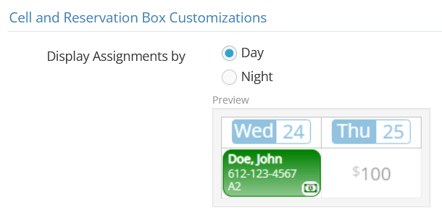
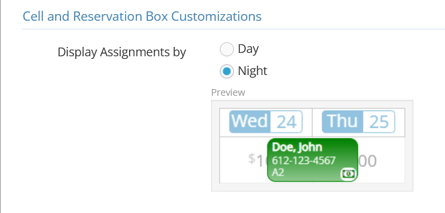
Show assignments by Day or Night
Day: assignments line up with the start and end of each day.
Night: a split view where arrivals start in the afternoon of check-in and departures end in the morning of check-out, like a traditional hotel night stay.
Fine-tuning what reservations show
| Setting | What it does |
|---|---|
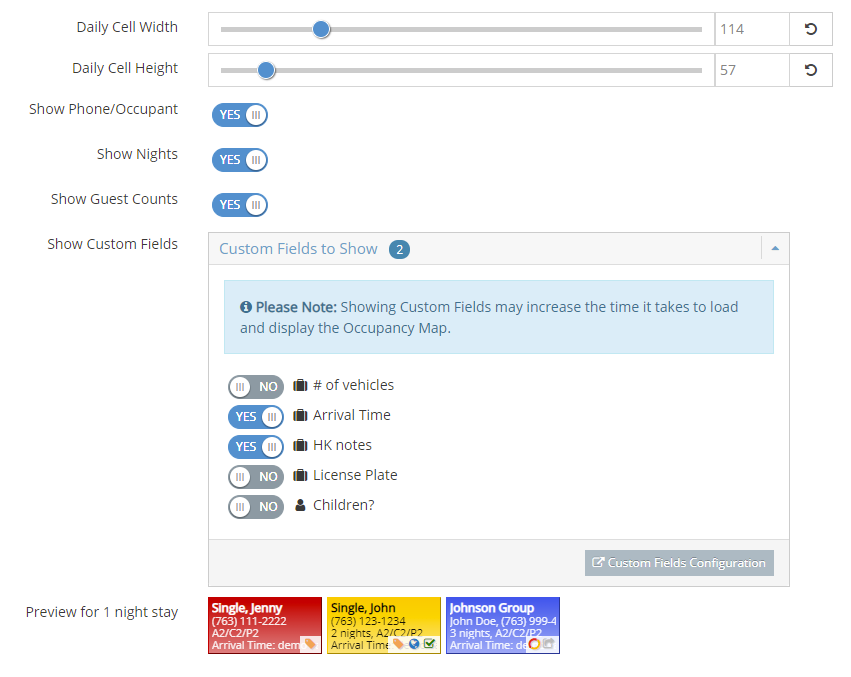
| Daily Cell Width & Height | Sets cell size. Smaller cells show more days and units but fit less information. Check the Preview area to see what gets cut off. |
| Show Phone/Occupant | Shows the guest's phone number and/or name. The name only appears if it's different from the reservation name. |
| Show Nights | Shows the length of stay. |
| Show Guest Counts | Shows guests by the first letter of each guest type. Example: 2 adults, 1 child and 1 pet shows as A2/C1/P1. |
| Show Custom Fields | Shows any Reservation or Person Custom Fields you choose. Person Custom Fields show the values for the guest assigned to that unit, not the primary guest. |

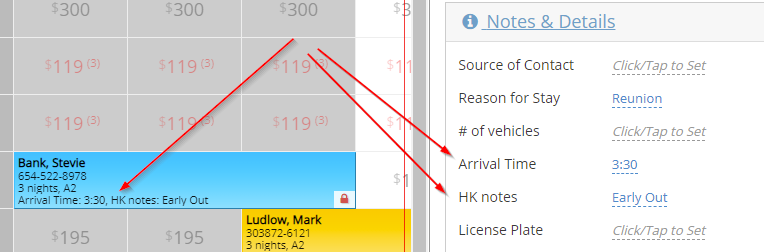
Custom fields example: Arrival Time and HK notes shown on reservations.
Performance warning
Very small cells, large or high-resolution monitors, lots of bookings, and showing Custom Fields all give the map more to load, which can slow it down. Try different settings to find the right balance between speed and what you need to see.
Still need help?
Call us at 303-872-0220 x 2 or send us a support request. We're happy to walk you through it.
Related articles