
rezStream Protection uses Multi-Factor Authentication (MFA) to help protect your rezStream Cloud account and business information by requiring additional verification when you sign in from an unrecognized device or browser.
Time needed: Approximately 3–5 minutes. Follow the steps at your own pace.
An additional layer of security
Even if someone obtains your password, MFA helps prevent unauthorized access by requiring a verification code sent to your registered email address.
On this page
What Is Multi-Factor Authentication (MFA)?
Multi-Factor Authentication is a security method that uses more than one type of verification to confirm your identity.
| Verification factor | Examples |
|---|---|
| Something you know | Your password. |
| Something you have | Access to your email account, mobile device, or authentication app. |
| Something you are | Biometric information, such as facial recognition or a fingerprint. |
By requiring additional verification, MFA makes unauthorized access more difficult when a password has been exposed or compromised.
How rezStream Protection Works
When rezStream Cloud does not recognize your browser or device, an additional verification step is required before you can access your account.
Enter your usual sign-in credentials.
↓
Additional verification is requested when needed.
↓
Confirm your identity using the code provided.
↓
Continue with your regular activities.
When you choose to remember a verified device, rezStream Cloud stores information in your browser that helps recognize it during subsequent sign-ins.
When Verification Is Required
You may be prompted to enter a verification code in the following situations:
- You sign in from a different computer, phone, or tablet.
- You switch to a different web browser.
- Your previous device verification is more than 30 days old.
- You have removed your browser cookies.
Designed for everyday use
With regular use of a remembered browser, verification should only be required occasionally rather than during every sign-in.
Verifying Your Device or Browser
If additional verification is required, the rezStream Protection screen will appear during sign-in.
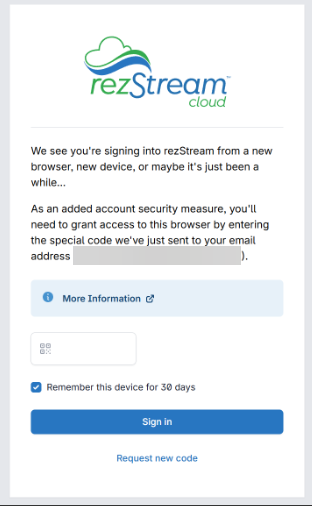
1 Check your email
Open the inbox associated with your rezStream Cloud user account and locate the verification email.
2 Enter your verification code
Return to the rezStream Protection screen and enter the code provided in the email.
3 Choose whether to remember your device
If you are using a trusted computer or personal device, you can select Remember this device for 30 days to reduce how often verification is required.
Using a public or unfamiliar computer?
Leave the Remember this device for 30 days option unchecked when using a public computer or a device you do not trust.
4 Sign in
Select the blue Sign in button to complete verification and access rezStream Cloud.
Keeping Your Account Secure
MFA is most effective when combined with good password and account security practices.
Avoid reusing passwords
Your rezStream Cloud password should be different from your email password and passwords used for other applications.
If you currently reuse the same password across multiple accounts, replace those passwords with unique ones.
Recommended security practices
- Use a strong, unique password for each account.
- Consider using a password manager to generate and securely store passwords.
- Enable additional security features on your email account when available.
- Never share your password or verification codes with anyone.
- Keep access to your registered email address up to date.
- Sign out when you finish working on a public or shared computer.
Common Questions and Troubleshooting
What if I cannot find the verification email?
If your verification email has not arrived, try the following:
- Confirm that you are checking the correct email account.
- Check your spam or junk email folders.
- Return to the rezStream Protection screen and select Request new code.
- Check your email again for the new verification message.
If you are still unable to locate the email, contact rezStream Support for assistance with verifying your account access.
What if I no longer have access to my registered email address?
Contact rezStream Support for assistance. Our team can help you with the account verification process and updating your email address so that you can regain access.
Why am I asked for a verification code every time I sign in?
If verification is required during every sign-in, your browser or computer may not be retaining the cookie used to recognize your previously verified device.
Common causes include:
- Private or incognito browsing.
- Browser settings that remove cookies when the browser closes.
- Privacy or ad-blocking extensions.
- Privacy or security software that removes stored cookies.
- Software that resets the computer whenever it restarts.
Need help with repeated verification?
For detailed troubleshooting instructions, see Why do I have to enter an authentication code every time I log in?
What if I receive a verification code I did not request?
An unexpected verification email may indicate that someone is attempting to access your account.
- Do not share the verification code.
- Change your rezStream Cloud password using the official sign-in page.
- Review the security of your registered email account.
- Contact rezStream Support if you suspect unauthorized access.
Still need help?
Call us at 303-872-0220 x 2 or send us a support request. We’re happy to walk you through it.
Related articles