
Examples of Cloud PMS letters are:
-
Confirmation
-
Cancellation
-
Detailed Invoice
-
Gift Certificate
-
Pre-Arrival
- Registration Card
- Thank You
To create the body of a letter:
-
Navigate to Configuration > Letters and Templates.
-
Click Letters to open the letter management screen.

-
In the upper right-hand corner, click the Add New Letter button.

-
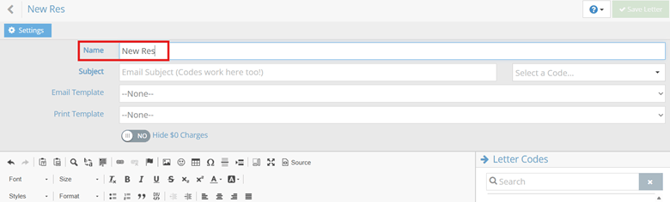
Enter a name for the new letter.
-
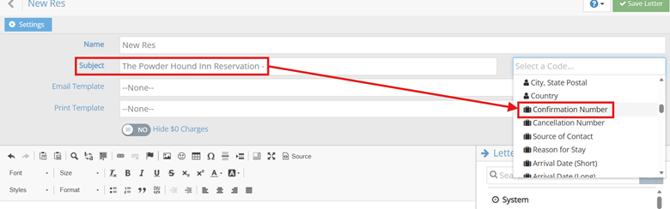
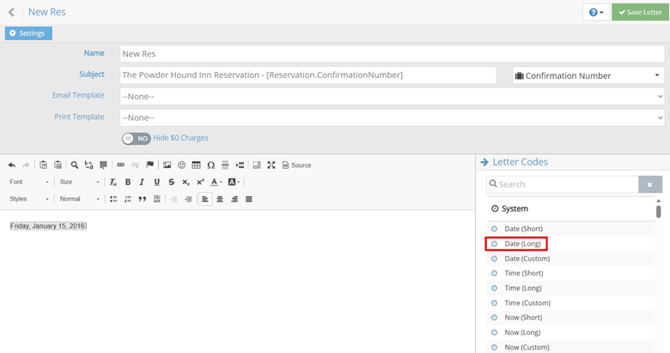
When the letter is emailed to a guest, the Subject Line is used as the email subject. Enter text and letter codes in the subject line. In the example below, the confirmation number is added to the end of the subject. To insert a letter code, select it from the Letter Codes section on the right.
-
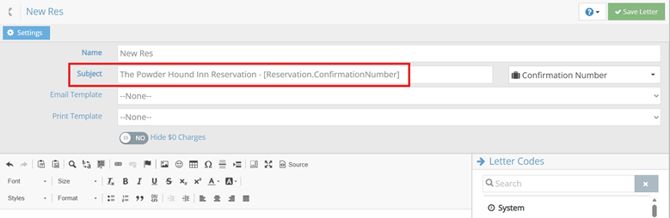
The selected letter code is inserted at the current cursor position in the subject line.
-
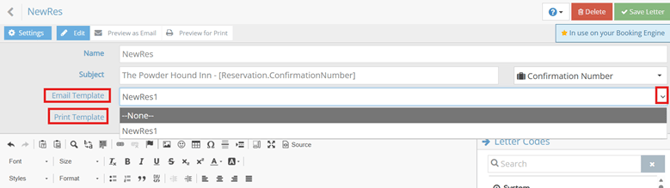
Add letter templates to emails and print copies by selecting the appropriate options from the Email Template and Print Template drop-down menus.
-
Add the date to the body of the letter. Select the “Date (Long)” code from right section.
-
Reference - Letter Codes: Letter Codes
-
-
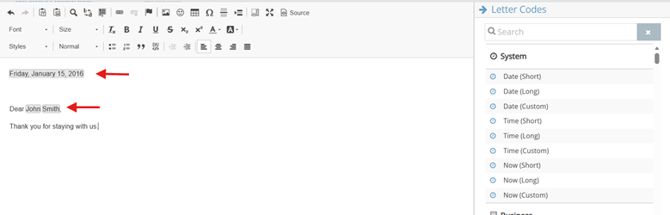
Enter a combination of text and letter codes in the body of the letter. In the example below, the guest's first and last name in the greeting are inserted using the First Name and Last Name letter codes.
-
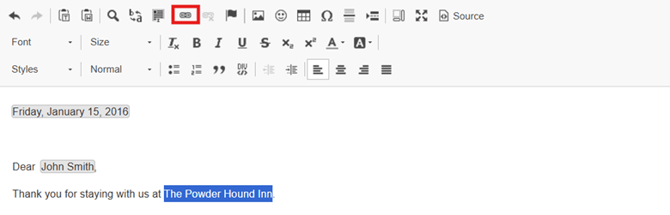
To add a hyperlink, highlight the text you want to link (for example, The Powder Hound Inn) and click Link.
-
Complete the fields in the Link Info window and click the OK button.

-
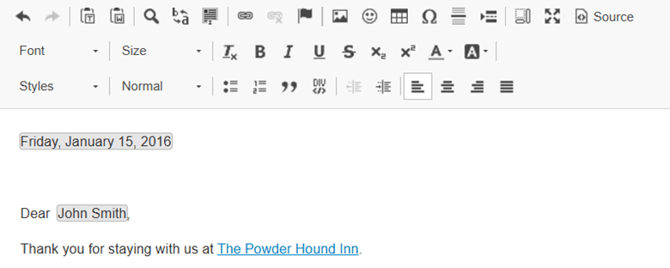
The hyperlink to the company website has been added, as shown below.
-
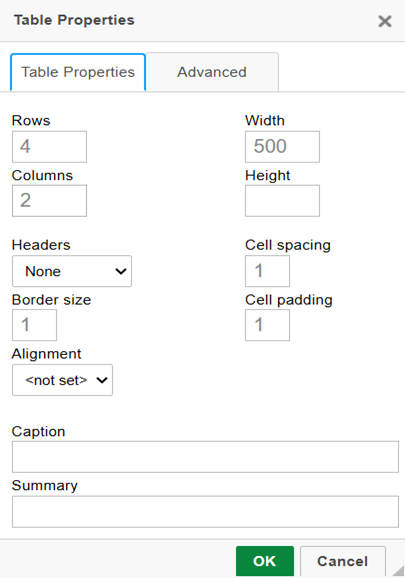
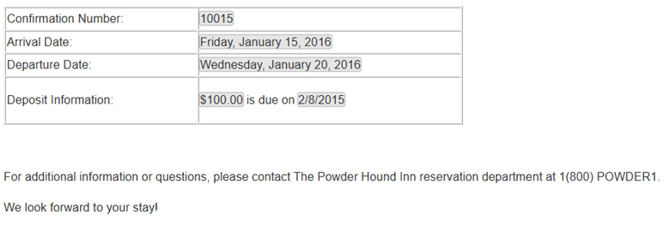
Create a table with four rows and two columns.

-
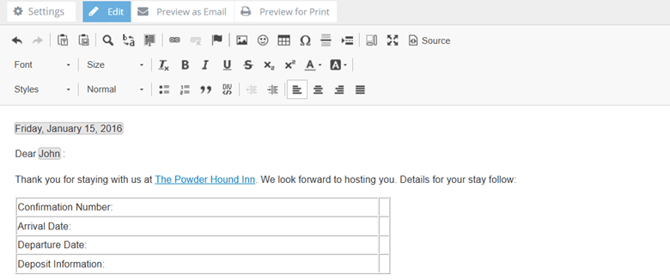
Enter text in the left-hand column:
-
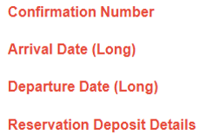
Enter letter codes in the right-hand column:

-
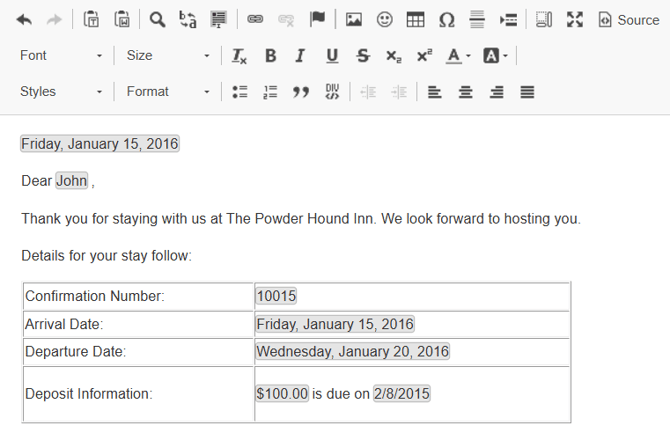
In this example, the “Deposit Name” code is not needed. Place your cursor inside the cell, then delete the code and the bullet point.
-
Complete the letter by adding text below the table:
-
Click Save to save the letter.

Personalizing your letters even more
We encourage you to personalize your letters and templates to reflect your business. You can use the toolbar in the letter editor to add emojis and images.
The editor also supports copying and pasting images directly into your letter or template. Open the photo you want to use in your favorite viewer, copy the image, then return to the letter editor and paste it. The image will be inserted at your cursor's location.
Note: While images can be embedded directly into letters and templates, file attachments are not supported. You cannot attach PDFs, Word documents, spreadsheets, or other files to a letter or template.