-
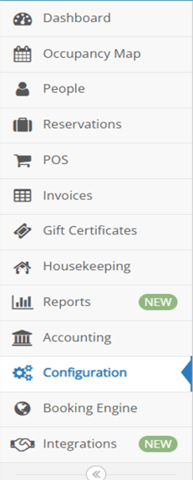
To create a Letter Template, click the Configuration button on the Quick Navigation toolbar.
-
Under the Email and Letters heading, click the Letters and Templates link.

-
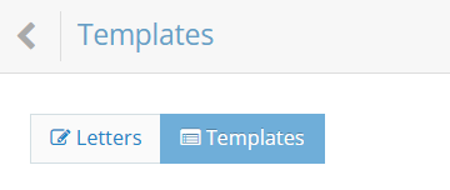
Click the Templates button.
-
In the upper right-hand corner, click the Add New Template button.

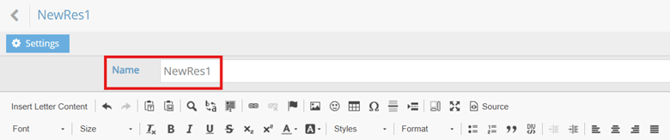
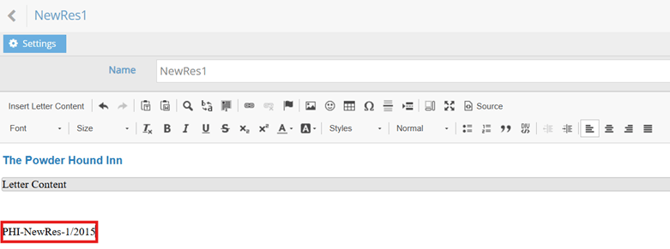
- Enter a Name for the template, NewRes1, in this example.
-
There are three sections in the template editor, the header, the body, and the footer.
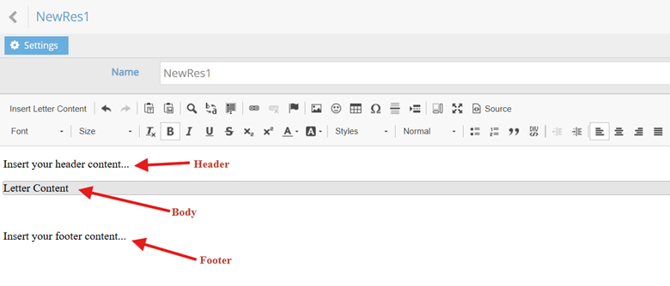
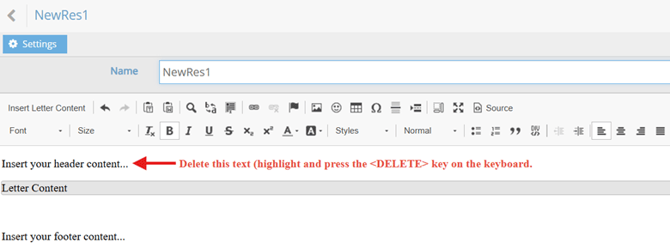
- To insert your property’s header text, simply remove “Insert your header content” and then begin typing the header. To add an image as a header, please contact Support.
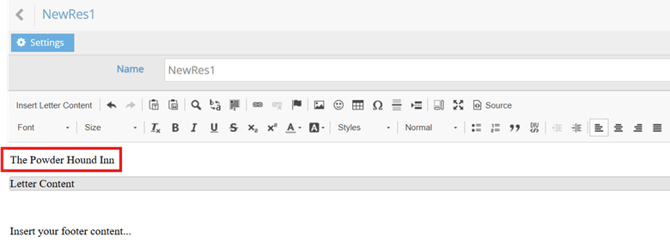
- After removing the default header text, enter your property’s header.
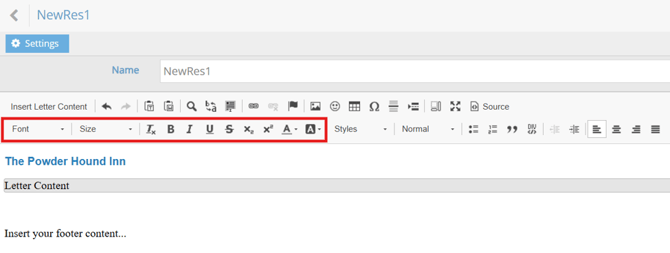
- Format the header using the tools provided.
- Follow steps 4-5 to format the template’s footer. To add an image as a footer, please contact Support.
- Click the Save Template button in the upper right-hand corner.