
Table of Contents
Overview
rezStream Devices automatically generates a PIN code when a reservation is imported. The PIN code is associated with the guest's reservation and is used to provide access to the assigned device during the configured check-in and check-out period.
For most reservations, no additional PIN code configuration is needed. Properties can customize PIN code behavior, check-in and check-out settings, and other guest access options when needed.
How PIN Codes Are Generated
When a reservation is imported into rezStream Devices, a PIN code is automatically generated for the guest.
By default, the PIN code is four digits and uses the last four digits of the guest's phone number. No additional PIN code settings are required to use this default.
If the phone-based PIN code cannot be used, rezStream Devices may automatically generate a random PIN code instead. For example, if two different guests have overlapping reservations and the same last four digits of their phone numbers, the first reservation keeps the phone-based PIN while the second receives a random PIN code.
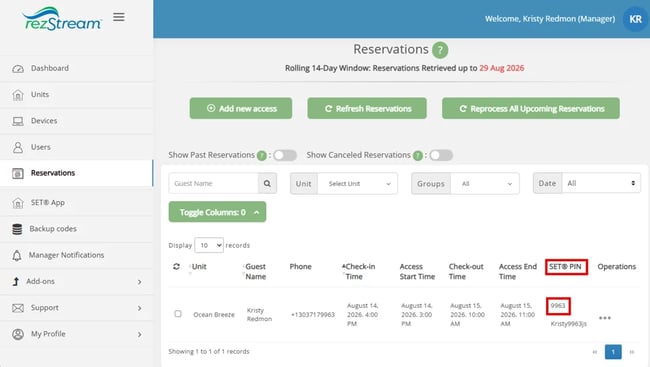
To view a guest's assigned PIN code, go to the Reservations page in rezStream Devices and locate the reservation. The PIN code is displayed in the SET® PIN column.
Properties can customize how PIN codes are generated and when they can be used. Settings can be configured for individual units, multiple existing units using Bulk Update, or future units through Default Settings. PIN codes and guest access times can also be adjusted for individual reservations.
Manage PIN Code and Access Settings for Units
Unit settings control how guest PIN codes are generated and when those PIN codes begin and stop working. Settings can be configured for an individual existing unit, multiple existing units, or future units.
Understanding Unit Settings
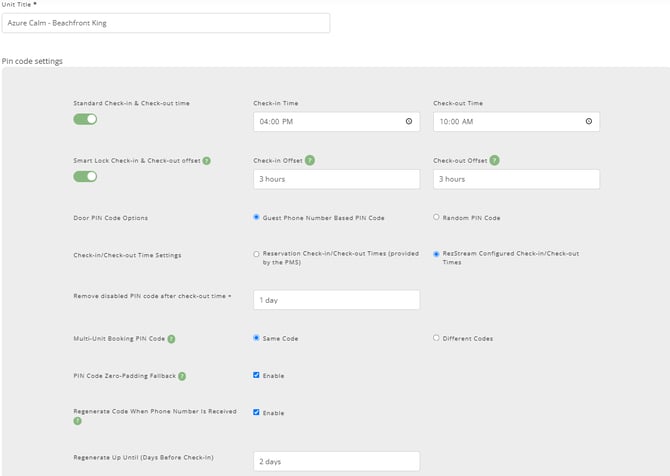
The following settings are available when configuring PIN codes and guest access for a unit:
- Standard Check-In Time: Sets the property's standard guest check-in time.
- Standard Check-Out Time: Sets the property's standard guest check-out time.
- Smart Lock Check-In Offset: Allows guest PIN codes to work before the standard check-in time.
- Smart Lock Check-Out Offset: Allows guest PIN codes to continue working after the standard check-out time.
- Guest Phone Number Based PIN Code or Random PIN Code: Determines whether PIN codes use digits from the guest's phone number or are randomly generated.
- Remove Disabled PIN Code After Check-Out Time: Determines how many days a disabled PIN remains on the device before removal.
- Shared Code or Per-Room Code: Determines whether guests with multiple units receive the same PIN code or separate codes.
- PIN Code Zero-Padding Fallback: Adds leading and trailing zeros to PIN codes when a smart lock requires more digits.
- Regenerate Code When Phone Number Is Received: Automatically generates a new phone-based PIN when a missing guest phone number is added to rezStream Cloud.
- Regenerate Up Until (Days Before Check-In): Controls how close to arrival a PIN code can be regenerated.
How Check-In and Check-Out Offsets Work
Check-in and check-out offsets create an additional buffer around the unit's standard check-in and check-out times.
For example, if check-in is at 3:00 PM and a 30-minute check-in offset is configured, the guest's PIN code begins working at 2:30 PM. If checkout is at 11:00 AM and a 1-hour check-out offset is configured, the PIN code continues working until 12:00 PM.
The guest is not notified of the offset. Their communicated check-in and check-out times remain the same. The offset simply determines when their PIN code begins and stops working.
Available offset options are 15, 30, or 45 minutes; 1–6 hours; or 12, 18, 24, 30, 36, 42, or 48 hours.
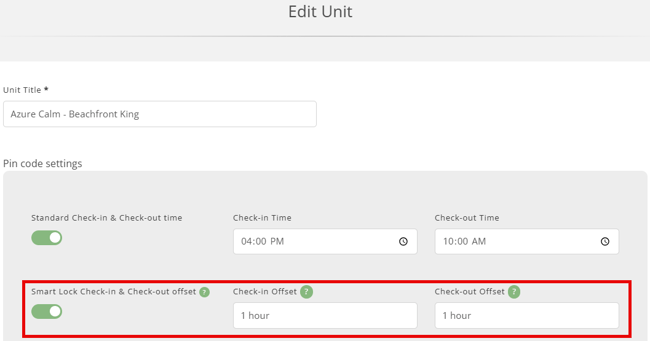
If a Smart Lock Check-In Offset or Smart Lock Check-Out Offset is changed for a unit with existing reservations, reprocess the affected reservations to apply the updated guest access times.
Change Settings for an Individual Unit
Use the individual Unit settings when you want to change PIN code or guest access settings for one existing unit.
- Go to Units.
- Locate the unit you want to update.
- Select Operations > Edit.
- Update the applicable settings.
- Click Save.
Change Settings for Multiple Existing Units Using Bulk Update
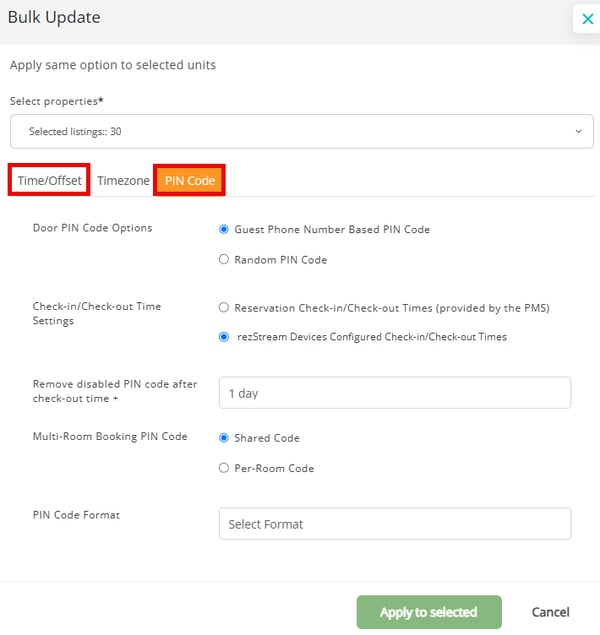
Use Bulk Update when you want to apply the same settings to multiple existing units.
- Go to Units.
- Click Bulk Update.
- Select the units you want to update.
- Use the Time/Offset or PIN Code tab to make your changes.
- Click Apply to selected.
Configure Default Settings for Future Units
Use Default Settings to configure settings that will be applied to units imported in the future.
- Click your profile icon in the upper-right corner and select Default Settings.
- Select Units.
- Use the Time/Offset or PIN Code tab to configure the applicable settings.
- Click Save.
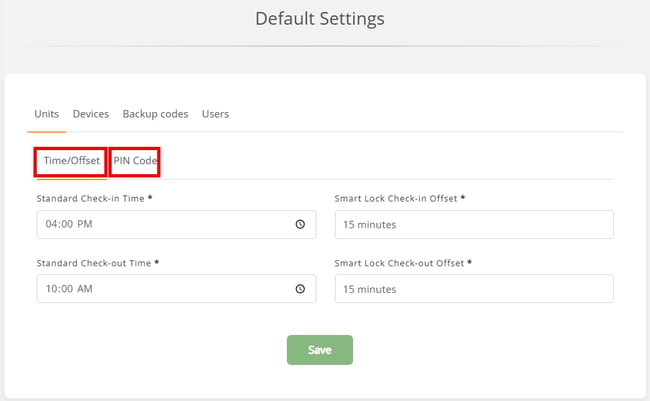
Important: Default Settings apply only to units imported after the settings are configured. To change settings for existing units, edit the individual unit or use Bulk Update.
Manage PIN Code Settings for Devices
Device settings control PIN code requirements for compatible devices. These settings are separate from the Unit settings that determine how guest PIN codes are generated and managed.
Change PIN Code Settings for an Individual Device
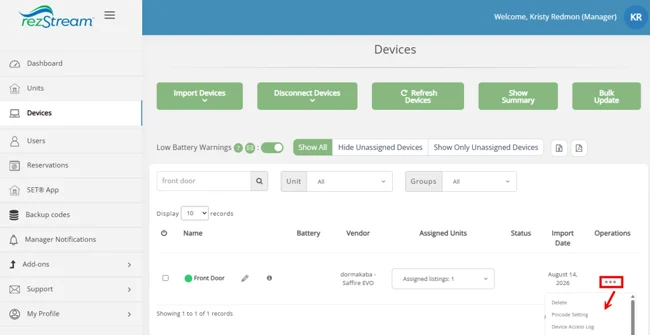
- Go to Devices.
- Locate the smart lock and click the three dots in the Operations column.
- Select Pincode Setting, if available.
- Update the PIN code settings and save your changes.
💡 Tip: Use the default device settings unless your property has specific operational requirements.
Change PIN Code Settings for Existing Devices Using Bulk Update
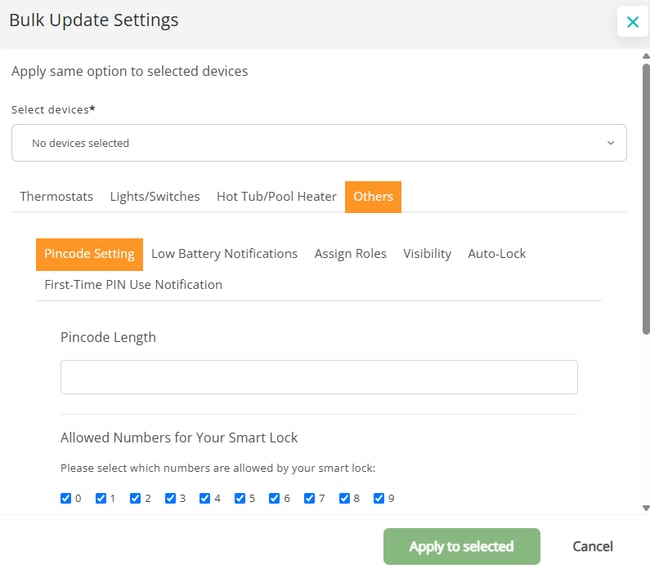
Use Bulk Update Device Settings to configure PIN code requirements for existing devices.
- Go to Devices.
- Click Bulk Update Device Settings.
- Select the devices you want to update.
- Go to Others > Pincode Setting.
- Configure the applicable settings:
- Pincode Length
- Allowed Numbers for Your Smart Lock
- Click Apply to selected.
Configure Default PIN Code Settings for Future Devices
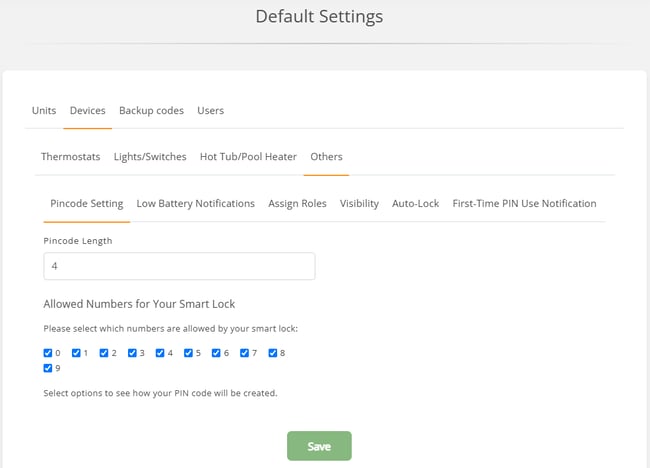
Use Default Settings to configure the PIN code requirements that will be applied to devices imported in the future.
- Click your profile icon in the upper-right corner and select Default Settings.
- Select Devices, then go to Others > Pincode Setting.
- Configure the Pincode Length and Allowed Numbers for Your Smart Lock.
- Click Save.
Get Notified When a PIN Code Is First Used
Properties can choose to receive an email notification when a new PIN code is used for the first time on a device.
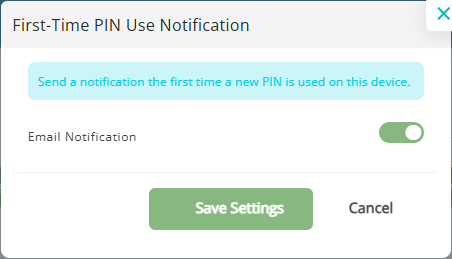
Configure First-Time PIN Use Notifications for an Individual Device
- Go to Devices.
- Locate the device and select Operations > First-Time PIN Use Notification.
- Toggle Email Notification On or Off, as preferred.
- Click Save Settings.
Configure First-Time PIN Use Notifications for Multiple Devices
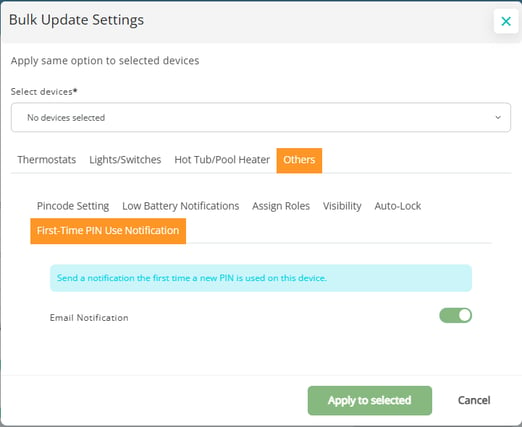
Use Bulk Update Device Settings to configure first-time PIN use notifications for multiple existing devices.
- Go to Devices.
- Click Bulk Update Device Settings.
- Select the devices you want to update.
- Go to Others > First-Time PIN Use Notification.
- Toggle Email Notification On or Off, as preferred.
- Click Apply to selected
Configure Default First-Time PIN Use Notifications for Future Devices
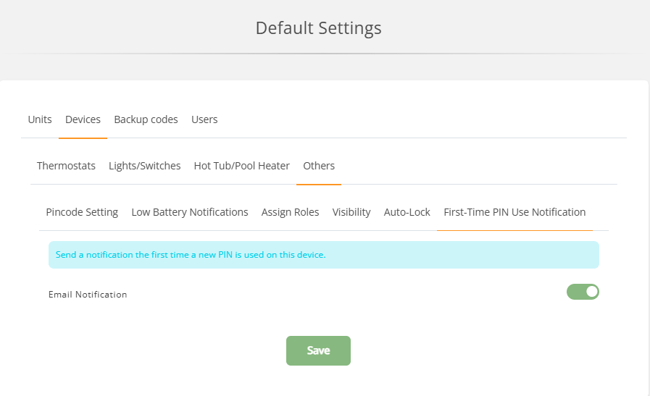
Use Default Settings to configure first-time PIN use notifications for devices imported in the future.
- Click your profile icon in the upper-right corner and select Default Settings.
- Select Devices, then go to Others > First-Time PIN Use Notification.
- Configure the Email Notification setting.
- Click Save.
Manage PIN Code and Access Settings for an Individual Reservation
Reservation information syncs in one direction, from rezStream Cloud to rezStream Devices. Guest information and reservation dates should be managed in rezStream Cloud. Only changes to guest PIN codes and individual reservation check-in or check-out times should be made directly in rezStream Devices.
Changes made in rezStream Devices do not sync back to rezStream Cloud.
Change a PIN Code
- Go to Reservations.
- Locate the reservation and select Operations > Edit.
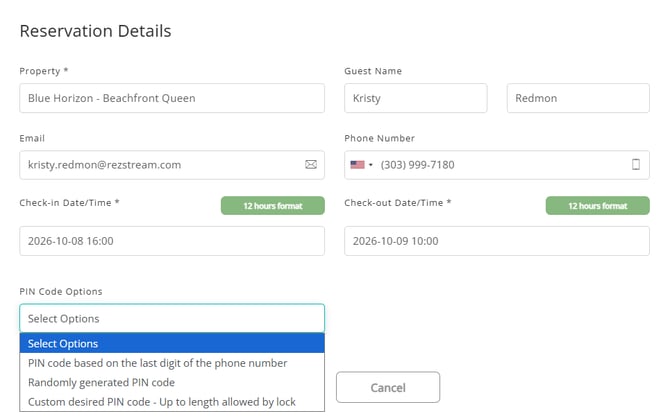
- Under PIN Code Options, choose one of the available options:
- Phone-based PIN code to use the last four digits of the guest's phone number.
- Randomly generated PIN code to generate a random code.
- Custom desired PIN code to enter a specific code, up to the length allowed by the device.
- Click Save.
- Reprocess the reservation to apply the change.
If the selected phone-based or custom Desired PIN is unavailable, rezStream Devices assigns a random PIN code instead.
Change Check-In or Check-Out Times
Use the reservation settings when you need to change the check-in or check-out time for a specific guest, such as for an early check-in or late checkout.
- Go to Reservations.
- Locate the reservation and select Operations > Edit.
- Update the applicable Check-in Time or Check-out Time.
- Click Save.
- Reprocess the reservation to apply the changes.
After reprocessing, the reservation's check-in/check-out times and notification times are updated, along with when the PIN code begins and stops working.
Reprocess a Reservation After Making Changes
When changes are made directly to an existing reservation in rezStream Devices, reprocess the reservation to apply the updated information.
Reprocess the reservation after making changes such as:
- Changing the guest's PIN code
- Changing the reservation's check-in or check-out time
You should also reprocess an existing reservation when a unit setting that affects the reservation is changed, such as the Smart Lock Check-In Offset or Smart Lock Check-Out Offset.
To reprocess a reservation:
-
Go to Reservations.
-
Locate the reservation.
-
Click the three dots in the Operations column.
-
Select Reprocess Reservation.
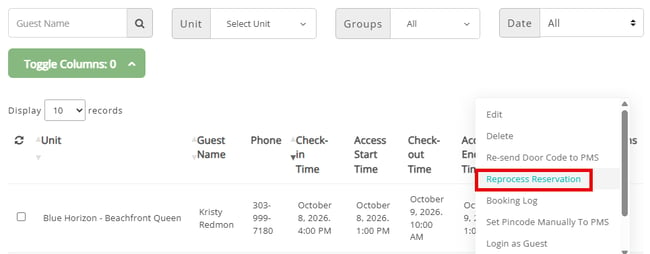
Reprocessing applies the updated reservation information, including changes to guest names, email addresses, and phone numbers in rezStream Cloud. It also processes the PIN code and updates any queued guest notifications. Depending on the notification settings, reprocessing can trigger an automatic guest notification if Auto-Notify is enabled.
Manage PIN Codes After Checkout
A guest's PIN code stops working at the configured checkout time. If a Smart Lock Check-Out Offset is configured, the PIN code remains active until the offset time ends.
After the PIN code is disabled, rezStream Devices can keep the code on the device for a configured number of days before removing it. The Remove disabled PIN code after check-out time setting allows properties to choose from 0 to 7 days.
This setting can be configured for an individual existing unit or for multiple existing units using Bulk Update. Default Settings can be used to configure the removal setting for units imported in the future.
The PIN code does not remain active during this removal period. The setting only determines when the disabled PIN code is removed from the device.
Reservation Cancellations
When a reservation is canceled in rezStream Cloud, rezStream Devices automatically sends a request to remove the guest's PIN code from the assigned locks. Any pending guest notifications for the canceled reservation are also removed.
rezStream Devices checks for reservation updates approximately every five minutes. Once the cancellation is detected, the PIN removal request is sent to the lock. For most connected locks, removal takes seconds to a few minutes. If a lock is offline, the PIN will be removed when the lock reconnects.
For last-minute cancellations, use Refresh Reservations on the Reservations page to retrieve the cancellation immediately rather than waiting for the next automatic update.
Backup PIN Codes
rezStream Devices automatically maintains three backup PIN codes for each lock. If a reservation's regular PIN code cannot be successfully added to the lock, an available backup PIN code is automatically assigned, by default, one day before check-in.
When using rezStream Devices Guest Notifications, the backup PIN code is included in the notification in place of the regular PIN code. Guests receive a working PIN code without needing to know that a backup was used.
After the reservation ends and connectivity is available, the backup PIN code is removed from the lock and a new backup PIN code is generated for future use.
Troubleshoot PIN Code and Guest Access Issues
Use the table below to troubleshoot common PIN code and guest access issues.
| Issue | What to Know or Check |
|---|---|
| PIN code is different than expected | A random PIN code may be assigned when the expected phone-based or custom Desired PIN is unavailable. For example, a conflict with another guest's PIN code can cause a random PIN code to be generated. |
| PIN code or reservation changes are not showing |
If changes were made directly to the reservation in rezStream Devices, confirm the reservation was reprocessed after saving. If the guest's name, phone number, or email address was changed in rezStream Cloud, use Reprocess Reservation in rezStream Devices to update the reservation and any queued guest notifications. |
| PIN code is not working at the expected time | Review the reservation's check-in and check-out times and the unit's Smart Lock Check-In Offset and Smart Lock Check-Out Offset. Also confirm that the time zone is set correctly. These settings determine when the guest's PIN code begins and stops working. If the unit settings were changed after the reservation was imported, reprocess the reservation. |
| SET® PIN shows an error |
Check the SET® PIN field on the Reservations page and click View Error to review the error returned by the device vendor. You can also select Operations > Booking Log to review the reservation activity. If the PIN has failed or is still pending, select Operations > Regenerate Guest Code to generate a new code. You can also use Reprocess Reservation to retry processing the PIN. If the issue continues, confirm the reservation still exists in rezStream Cloud, delete it from rezStream Devices, and use Refresh Reservations to import it again. |
| PIN code is assigned but does not work at the lock |
First, confirm the PIN code should currently be active based on the reservation's check-in/check-out times and any configured offsets. Check the device on the SET App page to confirm its current status and check for a triangle error icon. You can also review Devices > Operations > Device Access Log for errors adding the PIN code to the device. If the device appears to be working normally, edit the reservation and select a Randomly generated PIN code or enter a different Custom desired PIN code. Save and Reprocess Reservation, then test the new PIN code at the lock. |
Best Practices
-
Use Bulk Update when the same PIN code or access settings need to be applied to multiple existing units.
-
Use Default Settings to establish PIN code and access settings for units and devices imported in the future.
-
Make reservation changes in rezStream Cloud whenever possible. Changes made in rezStream Devices do not sync back to rezStream Cloud.
- Use Reprocess Reservation after updating guest information in rezStream Cloud or changing PIN codes, access times, or unit settings in rezStream Devices. Reprocessing can also trigger automatic guest notifications, depending on your notification settings.
When to Contact Support
If a PIN code still cannot be successfully added to the lock, or an assigned PIN code does not work at the lock after completing the troubleshooting steps above, contact rezStream Support for assistance.
You can submit a support request directly from rezStream Devices by going to Support > Support Request, completing the form, and clicking Submit.
You can also contact rezStream Support directly:
Phone: 303-872-0220, Option 2
Email: support@rezstream.com
Related Articles
Getting Started with rezStream Devices