
Note: Batch Emails is a Beta feature that must be enabled before use. To enable it, contact the rezStream Support Team at Support@rezStream.com or call 303-872-0220, extension 2.
User Permissions Required
To access and use the Batch Emails feature, users must have their permissions set to All for both Configuration and Reservations.
If either permission is restricted, the user may not have access to this feature. A property administrator can review and update these permissions as needed.
What Are Batch Emails?
Batch Emails is a rezStream feature that lets you send a single email to multiple guests at once, based on their reservation details. Instead of contacting guests individually, you select the reservations you want to reach and send the same message to all of them at once.
For example, you can use Batch Emails to:
- Notify guests about severe weather that may affect their travel.
- Share parking or arrival instructions for an upcoming local event.
- Communicate property updates or other important information to arriving guests.
You can send up to 1,000 emails at a time and choose exactly which reservations to include or exclude before sending.
Accessing and Using the Feature
- Navigate to Reservations.
- Use the available filters to find the reservations you want to email, such as:
- Filter dropdown
- Date range
- Guest name
- From the Reservations list, click Send a Batch of Emails in the upper-right corner.

- Select the email template, or letter, you want to send.
- Review your reservation lists:
- Included Reservations: Will receive the email
- Excluded Reservations: Will not receive the email

- To move a reservation between lists, either:
- Click the minus button, or
- Double-click the reservation
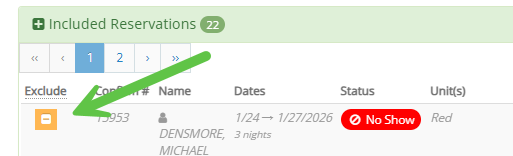
- Click Preview Emails to preview the email for the first selected reservation. Please note that the email preview is read-only.

- Click Send Emails to send the selected template to all reservations in the Included Reservations list. Please note that a maximum of 1,000 emails can be sent per batch.

Template Behavior
The template type you select determines who receives the email for each reservation:
- Invoice Templates
- Emails are sent to each person with an invoice
-
- Multiple recipients per reservation are possible
- Person & Reservation Templates
- Emails are sent only to the Primary Contact
If you have any questions or need help getting started, contact the rezStream Support Team at Support@rezStream.com or call 303-872-0220, extension 2. don’t hesitate to reach out to our Support team!