
Table of Contents
Getting Started
Before starting, make sure you have:
This guide walks you through setting up and using the Shift4 PAX A800 payment terminal with rezStream Cloud, including connecting the terminal, configuring settings, testing a transaction, and processing refunds or voids.
- Your Shift4 terminals (powered on)
- Reliable Wi-Fi connection (recommended over cellular for setup)
- S4 Commerce app installed and visible on the terminal's home screen (if you don’t see it, contact Shift4 to have it installed)
- Terminal serial numbers (printed on a sticker on the back of each device)
- Access to rezStream Cloud
Step 1: Power On and Connect Terminals
- Ensure each terminal is powered on.
- Connect the terminals to your Wi-Fi network.
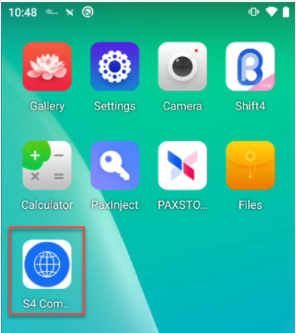
- Tap the S4 Commerce app to open and run the app. (It should be on the home screen reflecting a blue and white globe icon.)
- Select the S4 Commerce Application
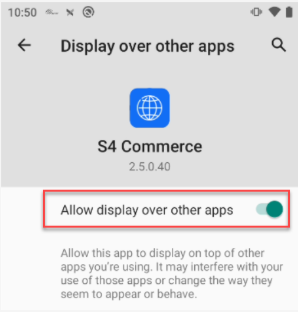
- Select the Allow display over other apps setting to enable it.
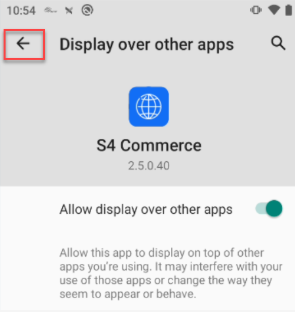
- Select the back arrow to navigate back to the Main Settings menu.
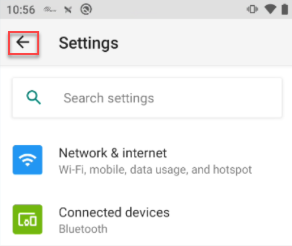
- Select the back arrow on the Main Settings screen.
- Select the S4 Commerce application.
- Once launched, Commerce Engine should display the idle screen shown below. This indicates that the application is running and ready to process transactions.

- Select the S4 Commerce Application
- Follow the steps outlined in Shift4’s, Commerce Engine Connection Test Tool, article to verify that your system is ready to connect. If any step does not display a green checkmark, contact Shift4 assistance in resolving the issue before proceeding. When all checks are green, proceed to Step 2 to add terminals in rezStream Cloud.
Important: The S4 Commerce app handles payment processing on the terminal and must be open and running for the terminal to communicate with rezStream and process transactions.
Back to Top
Step 2: Add Terminals in rezStream Cloud
-
Log into rezStream Cloud.
-
Navigate to: Configuration → Payment Settings → Credit Card Processing.
- Enable Credit Card Terminals
-
Toggle Enable Credit Card Terminals to Yes
-
This determines whether credit card terminal options are available when collecting card information.

-
-
- Set Card Present by Default (Optional)
-
Toggle Use Card Present by Default to Yes.
-
This makes credit card terminals the default method of collecting card information.

-
-
- Enable Cloud Terminals
- Toggle Use Cloud Terminals to Yes.
- This allows the use of web-based credit card terminals.

- This allows the use of web-based credit card terminals.
- Toggle Use Cloud Terminals to Yes.
- Configure Auto Print Receipt
- Set Auto Print Receipt to one of the following:
- Disabled: No receipt will print automatically.
- Customer Copy: A customer copy will print automatically.
- Merchant Copy: A merchant copy will print automatically.

- Set Auto Print Receipt to one of the following:
- Manage Terminals
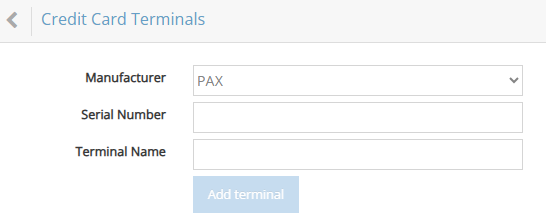
- Click Manage Terminals to configure and review your available terminal devices.

- For each device:
- Manufacturer: Select PAX
- Serial Number: Enter the number found on the back of the device (starts with 221…)
- Terminal Name: Assign a descriptive name (e.g., Front Desk, T1, Poolside)
- Repeat for all devices.
Step 3: Refresh Browsers
-
On any computer currently logged into rezStream Cloud, refresh the browser so the system recognizes the new terminal settings.
Step 4: Test a Transaction
-
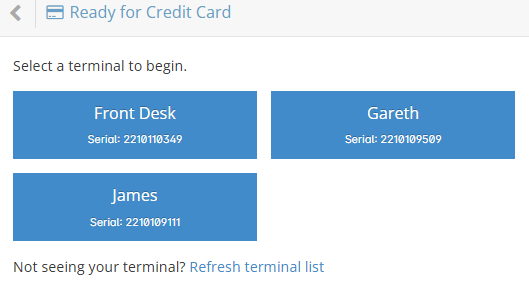
Initiate a test payment in rezStream Cloud.
-
The system will prompt you to select a terminal (if multiple are paired).
-
Run the transaction using swipe, dip, or tap.
-
Confirm that the payment processes and a receipt prints (based on your chosen settings).
If the test transaction does not complete successfully, verify that the S4 Commerce app is open and running on the terminal, confirm the serial number was entered correctly in rezStream Cloud, and refer to the Troubleshooting section below before contacting rezStream Support.
Step 5: Using the Shift4 PAX A800 Terminal After Setup
Once your Shift4 PAX A800 terminals are configured, they are used when making a credit card payment in rezStream Cloud.
Swipe, dip, or tap card entry is available only when a payment is being processed. When no payment is being taken, such as when saving a card on file or viewing a reservation or person record, manual card entry is required.
The terminal is not used to collect or store card details unless a payment is being made.
When a payment is processed using a Shift4 terminal, the cardholder name on the transaction may appear as CARDHOLDER. This is a normal security feature of card-present transactions, and the payment remains securely associated with the reservation and invoice inside rezStream.
Back To TopStep 6: Refunds and Voids
-
Voids: If a payment has not yet been batched, use Void. To void a payment, open the Invoice screen, locate the payment, and click the Void button.
-
Refunds: If the payment has been batched, use Refund.
-
To issue a refund:
-
Open the Invoice screen.
-
Click the Refund button (between Pre-Auth and Payment).
-
Choose the amount and process via swipe, dip, or tap.
-
FAQs
Terminal Setup & Use
- Multiple terminals can be connected, but only one type (Shift4 vs. legacy) can be active at a time.
- Old swipe-only terminals are automatically disabled once cloud terminals are enabled.
- Terminals are not tied to a specific computer. Once paired to your account, they can be used from any device logged into rezStream Cloud.
- Width: 2 ¼ inches (2.25" / 57 mm)
- Roll diameter: Up to 50 mm (~2 inches), which typically provides approximately 50–60 feet of paper (varies by paper thickness and brand).
- Sometimes the payment terminal and rezStream Cloud don’t time out at the same speed:
- rezStream Cloud will stop waiting after 65 seconds without a response from Shift4.
- The terminal may still appear active while you’re retrying (swipe, dip, tap) or switching to manual entry.
- Important: If this happens, rezStream Cloud will show an error and end the transaction. Do not continue collecting payment on the terminal. Cancel the attempt instead. If you proceed, the payment may process on the terminal but will not be recorded in the PMS.
Troubleshooting
- Need help connecting the PAX A800 terminal to WiFi?
Refer to A800 Connecting via WiFi on page 2 of Learn to set up and enable network configuration for Android PAX devices. - Don't see the S4 Commerce app on your terminal?
If you do not see the blue and white S4 Commerce app icon on the terminal's home screen, contact Shift4 at 1-888-857-9751 in the USA or 1-855-894-7996 in Canada, for assistance. - Getting errors when connecting to rezStream Cloud?
- Verify the terminal is connected to WiFi.
- Verify the S4 Commerce app is open and running.
- Complete Shift4's Commerce Engine Connection Test Tool and confirm all checks display green checkmarks.
- In rezStream Cloud, confirm ‘Use Cloud Terminals’ is set to Yes. (Refer to Step 2 – Add Terminals in rezStream Cloud.)
- Confirm the device type and serial number were entered correctly.
If you encounter issues or have questions during setup, contact rezStream Support at 303-872-0220, Option 2. Be sure to provide details on the terminal used, transaction type, and any error messages.