
Learn how to use Reservation reports in rezStream Cloud to track guest activity, review booking trends, monitor cancellations, and manage daily operations at your property.
Time needed: Approximately 5–10 minutes. Follow the steps at your own pace.
Understanding Reservation reports
Reservation reports retrieve current information directly from your rezStream Cloud database to help you manage guest activity and review reservation records.
There are 12 reports available in this category, each serving a different operational or reporting purpose. Depending on the report, you can customize the information displayed, print the results, or export the data.
On this page
- How to access Reservation reports
- Understanding Reservation report data
- Choosing the right report
- Available Reservation reports
- Arrivals with Details
- Cancelled Reservations by Cancel Date
- Cancelled Reservations by In-House Date
- Export Only - People Arriving by Day (Akia)
- Export Only - People Departing by Day (Revinate)
- Export Only - People Departing by Day (Stash Rewards)
- Reservations by Date Made
- Reservations by In-House Date
- Active
- Arrivals
- Departures
- Stayovers
- Customizing report settings
- Printing and exporting reports
How to access Reservation reports
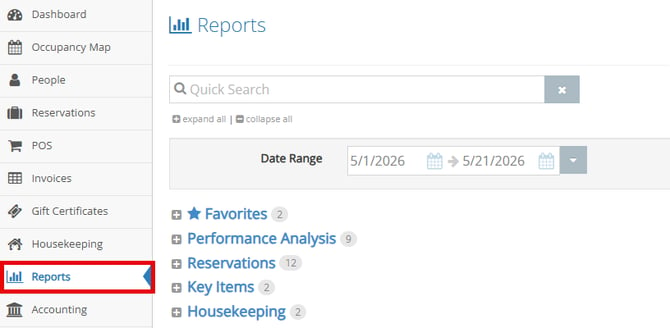
1 Open Reports
Navigate to the Reports tab in the left navigation menu of rezStream Cloud.
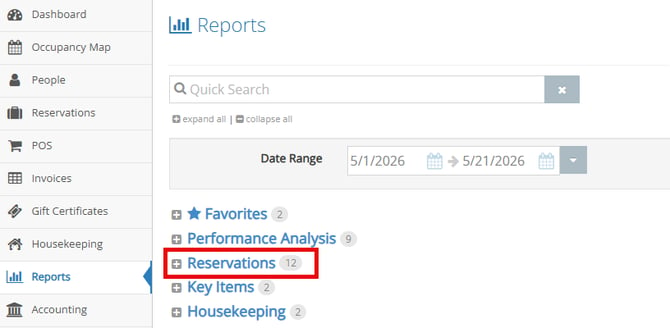
2 Locate the Reservations category
Locate the Reservations category within the available report categories.
3 Expand the Reservations category
Select the plus (+) icon beside Reservations to expand the category and display all 12 available reports.
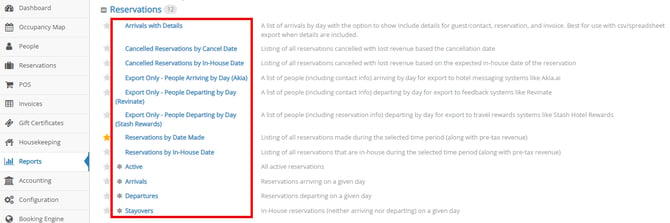
4 Select a report
Select the report that best meets your needs. Review the selected dates and any additional report settings before viewing the results.
Understanding Reservation report data
The information displayed varies depending on the report you select. The following fields are commonly found across Reservation reports:
| Field | Description |
|---|---|
| Arrival | The reservation's scheduled arrival date. |
| Departure | The reservation's scheduled departure date. |
| Guest | The person associated with the reservation. |
| Confirmation # | The confirmation number associated with the reservation. |
Depending on the report, additional information may include unit assignments, guest counts, booking channels, reservation statuses, charges, payments, balances due, or notes.
Choosing the right report
Not sure which report to use? Select a report from the table below based on the information you need.
| What do you want to know? | Recommended report |
|---|---|
| Who is arriving, and what are their reservation details? | Arrivals with Details |
| Which reservations were cancelled during a particular period? | Cancelled Reservations by Cancel Date |
| Which cancelled reservations were originally scheduled to stay during a particular period? | Cancelled Reservations by In-House Date |
| Which new bookings did I receive during a selected period? | Reservations by Date Made |
| Which reservations have stay dates within a selected period? | Reservations by In-House Date |
| Which guests are arriving, departing, or staying? | Active |
| Who is scheduled to arrive? | Arrivals |
| Who is scheduled to depart? | Departures |
| Which guests are continuing their stay? | Stayovers |
| How can I export arriving guest information for Akia? | Export Only - People Arriving by Day (Akia) |
| How can I export departing guest information for Revinate? | Export Only - People Departing by Day (Revinate) |
| How can I export departing reservation information for Stash Rewards? | Export Only - People Departing by Day (Stash Rewards) |
Available Reservation reports
The following sections explain the purpose of each Reservation report and provide examples of the information and settings available.
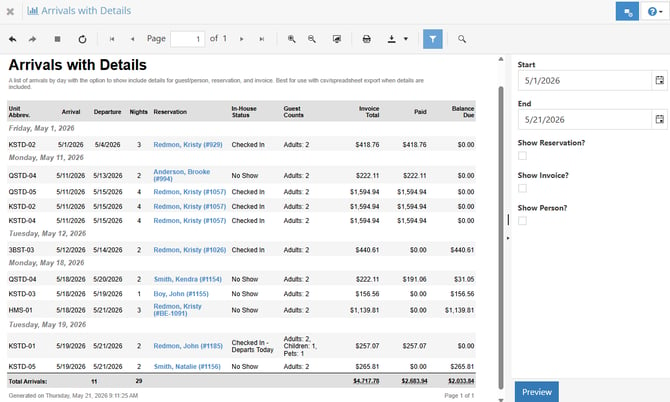
Arrivals with Details
Review upcoming or historical arrivals organized by arrival date, with optional information about the guest, reservation, and invoice.
Best used for:
- Preparing detailed arrival lists.
- Reviewing guest counts, reservation statuses, and outstanding balances.
- Exporting detailed guest and reservation information.
Available report options:
- Start and End: Select the reporting period.
- Show Reservation? Include additional reservation information.
- Show Invoice? Include additional invoice information.
- Show Person? Include additional guest or contact information.
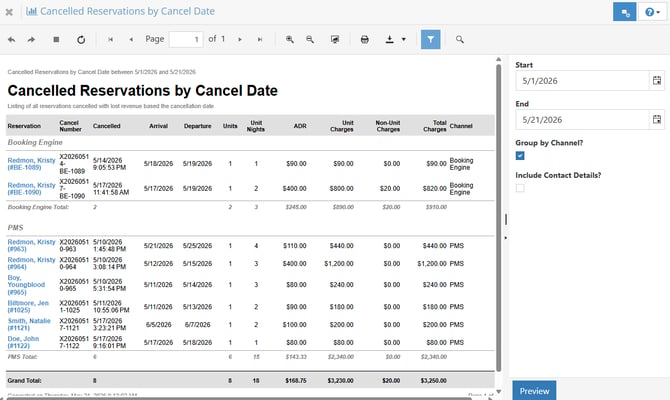
Cancelled Reservations by Cancel Date
Review cancellations and associated lost revenue according to when each reservation was cancelled.
Best used for:
- Tracking cancellation activity during a selected period.
- Reviewing potential revenue lost through cancellations.
- Comparing cancellations across booking channels.
Available report options:
- Start and End: Select the cancellation date range.
- Group by Channel? Organize the results by booking channel.
- Include Contact Details? Include guest contact information.
Cancelled Reservations by In-House Date
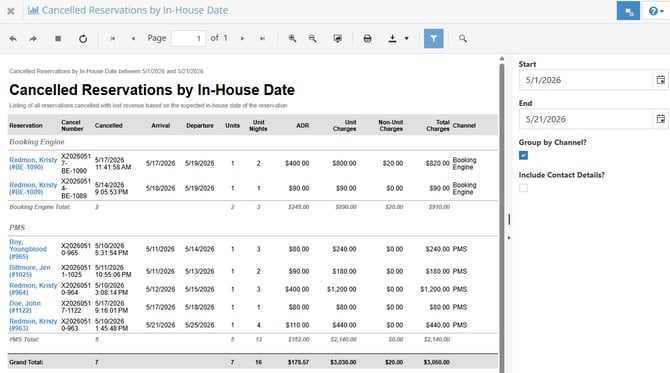
Review cancellations and associated lost revenue according to the dates guests were originally expected to stay.
Best used for:
- Evaluating the impact of cancellations on a particular stay period.
- Reviewing potential revenue lost for specific months or seasons.
- Identifying cancelled reservations that would have occupied units during selected dates.
Available report options:
- Start and End: Select the expected stay period.
- Group by Channel? Organize cancellations by booking channel.
- Include Contact Details? Include guest contact information.
Cancel Date vs. In-House Date
A guest books a stay for July 15–18 but cancels the reservation on May 10.
| Report | Reporting month |
|---|---|
| Cancelled Reservations by Cancel Date | May |
| Cancelled Reservations by In-House Date | July |
Both reports reference the same cancelled reservation but use different dates to determine when it appears in the report.
Export Only - People Arriving by Day (Akia)
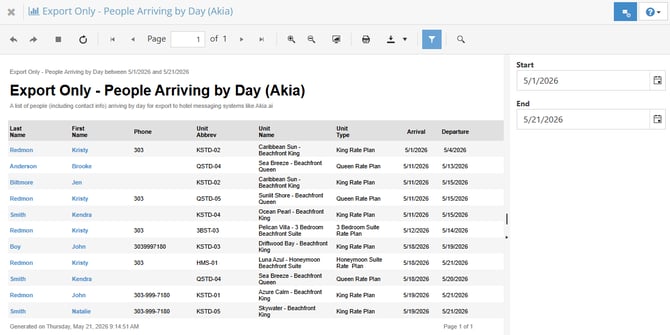
Export arriving guest information in a format intended for hotel messaging platforms such as Akia.
Information may include:
- Guest names and phone numbers.
- Unit names, abbreviations, and unit types.
- Arrival and departure dates.
Select the appropriate Start and End dates before exporting the report.
Export Only - People Departing by Day (Revinate)
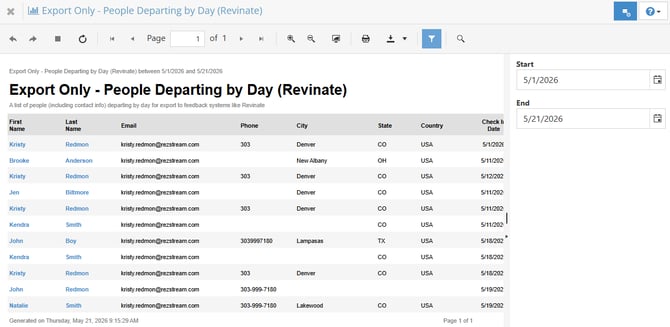
Export departing guest information for use with guest feedback platforms such as Revinate.
Information may include:
- Guest names.
- Email addresses and phone numbers.
- City, state, and country information.
- Reservation dates.
Select the appropriate Start and End dates before exporting the report.
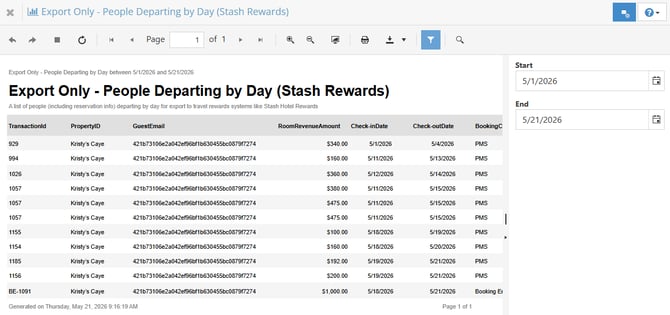
Export Only - People Departing by Day (Stash Rewards)
Export departing reservation information in a format intended for travel loyalty programs such as Stash Hotel Rewards.
Information may include:
- Transaction and property identifiers.
- Room revenue amounts.
- Check-in and check-out dates.
- Booking channel information.
Select the appropriate Start and End dates before exporting the report.
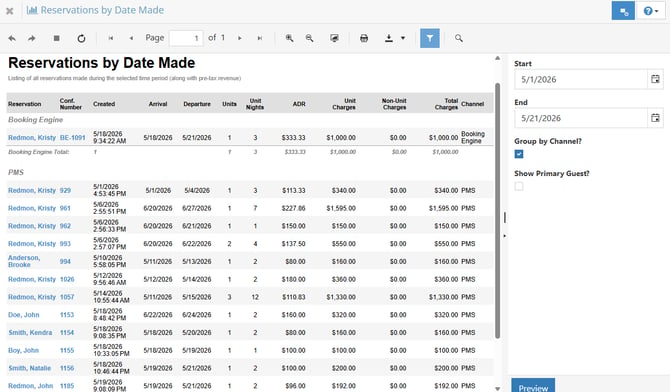
Reservations by Date Made
Review reservations created within a selected date range, regardless of when the guests are scheduled to stay. The report also includes pre-tax reservation revenue amounts.
Best used for:
- Tracking new booking activity.
- Reviewing the value of reservations received during a particular period.
- Comparing booking activity across channels.
Available report options:
- Start and End: Select the reservation creation date range.
- Group by Channel? Organize the results by booking channel.
- Show Primary Guest? Include the primary guest information.
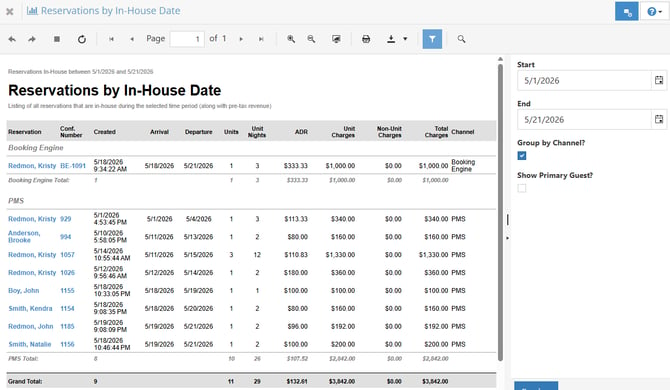
Reservations by In-House Date
Review reservations with stay dates that fall within the selected reporting period, along with their pre-tax revenue amounts.
Best used for:
- Reviewing reservations associated with a particular stay period.
- Evaluating guest activity during selected dates.
- Comparing reservations associated with different booking channels.
Available report options:
- Start and End: Select the stay date range.
- Group by Channel? Organize the results by booking channel.
- Show Primary Guest? Include the primary guest information.
Date Made vs. In-House Date
A guest makes a reservation on May 15 for a three-night stay in August.
| Report | Reporting month |
|---|---|
| Reservations by Date Made | May |
| Reservations by In-House Date | August |
Use Date Made to understand when guests are booking and In-House Date to understand when their stays are scheduled.
Reservation totals vs. earned revenue
Reservation reports may include financial amounts, but their primary purpose is to review reservation activity. These amounts should not automatically be treated as earned revenue for the selected reporting period.
For more information, see Understanding Report Categories and Use Cases in rezStream Cloud.
Active
Review active reservations, including guests who are arriving, departing, or continuing their stay on the selected date.
Best used for:
- Preparing a daily overview of guest activity.
- Reviewing reservation statuses and outstanding balances.
- Reviewing guest and reservation notes for daily operations.
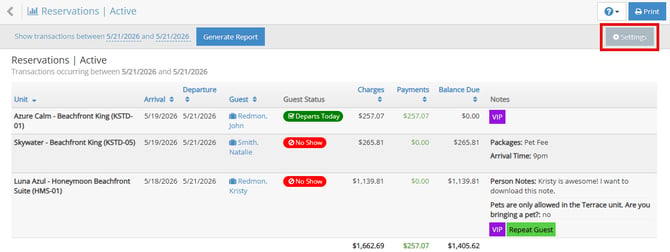
Use the Settings button to choose which types of notes appear on the report.
Arrivals
Review reservations scheduled to arrive during the selected reporting dates.
Best used for:
- Preparing daily arrival lists.
- Reviewing arrival-related notes and requests.
- Identifying guests with outstanding balances before arrival.
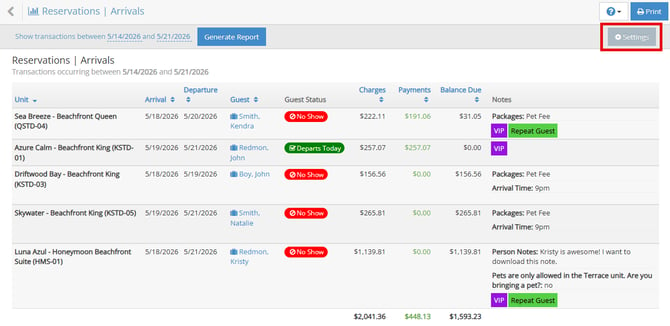
Use the Settings button to customize which notes are displayed.
Departures
Review reservations scheduled to depart during the selected reporting dates.
Best used for:
- Preparing daily departure lists.
- Identifying outstanding balances before check-out.
- Coordinating front desk and housekeeping activities.
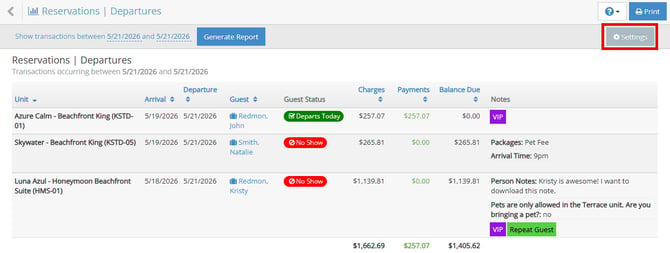
Use the Settings button to customize which notes are displayed.
Stayovers
Review reservations whose scheduled stays continue through the selected date, excluding reservations arriving or departing on that date.
Best used for:
- Identifying reservations with continuing stays.
- Coordinating stayover housekeeping services.
- Reviewing guest requests and notes during a stay.
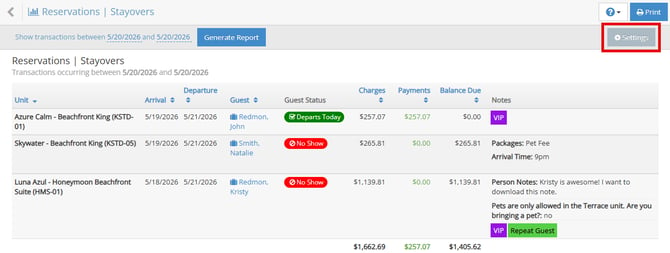
Use the Settings button to customize which notes are displayed.
Example: Understanding your daily Reservation reports
Suppose you have three reservations with the following arrival and departure dates. You are reviewing your reports for June 12.
| Guest | Arrival | Departure | Report |
|---|---|---|---|
| Guest A | June 12 | June 15 | Arrivals |
| Guest B | June 10 | June 14 | Stayovers |
| Guest C | June 9 | June 12 | Departures |
Assuming all three reservations are active, the Active report provides a combined view of all three reservations for June 12.
Customizing report settings
The Active, Arrivals, Departures, and Stayovers reports allow you to customize the types of notes displayed.
1 Open a Reservation report
Select the Active, Arrivals, Departures, or Stayovers report.
2 Open Settings
Select the Settings button in the upper-right corner of the report.
3 Choose which notes to display
Review the available settings and select the types of notes you want included in your reports.
Shared report settings
The selected note settings are shared across the Active, Arrivals, Departures, and Stayovers reports. Keep this in mind when changing the information displayed.
Printing and exporting reports
Reservation reports can be printed or exported using the available options within the selected report.
- Print: Create a printed copy for daily operational planning or recordkeeping.
- Export: Save report information in an available file format for additional review, analysis, or use with external platforms.
Available printing and export options may vary depending on the report you select.
Still need help?
Call us at 303-872-0220 x 2 or send us a support request. We're happy to walk you through it.
Related articles