
Keep a guest in a specific unit by locking their unit assignment, so it isn't moved or changed by mistake.
Time needed: about 3 minutes
When to lock a unit
- A guest really wants to stay in a specific room
- A group wants to stay together
- You have your own reason to keep certain guests in certain units
Lock a unit assignment
In the reservation, click the Unlocked/Locked button next to the unit you want to lock. You can lock the whole reservation or just some of its units.

Units start out Unlocked. Clicking Unlocked changes it to Locked.

How to spot a locked unit
A Locked icon also appears on the reservation on the Occupancy Map.

Need to move a locked reservation?
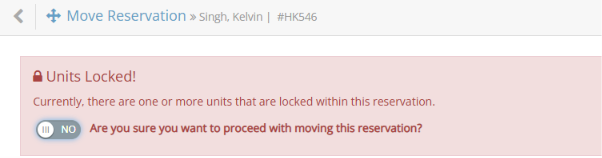
You can still move or resize it, but you'll be asked to confirm first:
- Start moving or resizing the reservation. The move/resize screen is turned off at first.
- When the Unit Locked message appears, click YES.
- The screen turns on, and you can make your changes.
Booking site (OTA) reservations
You can lock OTA reservations so your team doesn't move them in rezStream Cloud. But if the guest changes their reservation on the booking site, the lock can't stop it. OTA reservations are managed by the booking site, so a guest's change there may move their unit assignment.
Still need help?
Call us at 303-872-0220 x 2 or send us a support request. We're happy to walk you through it.
Related articles