
Access Payment Settings
- Log in to your rezStream Cloud account.
- Click on the Configuration tab on the left-hand side.
- Select Payment Settings
- Click on the Credit Card Processing tab.
Review Credit Card Gateway Settings
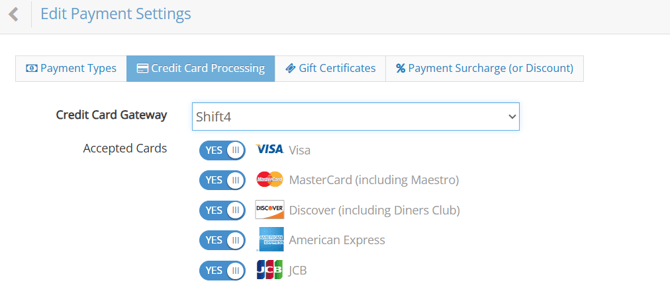
- Credit Card Gateway: Confirm it is set to Shift4.
- The Accepted Cards settings under the Credit Card Processing tab allow you to enable or disable specific card types accepted by your gateway, including Visa, MasterCard (including Maestro), Discover (including Diners Club), American Express, JCB.
(Please note that disabling a card type here only affects transactions processed through the payment gateway. It will not automatically remove that card type as an option on your booking engine. To fully block a card type across both your property and online booking engine, you’ll need to contact Shift4 Support and have that card type removed completely.) - Accepted Currency: Set to USD (must match your merchant account).
- API Credentials: Enter the rezStream Cloud PMS Authorization Token in the Shift4 Authorization Code field. This token is provided by Shift4 and sent directly to rezStream Support as part of the integration setup process.
