
Choose how rezStream Cloud rebooks guests for the "same time next year," and make rebooking part of your check-out routine.
Time needed: about 15 minutes to read
Why rebooking needs a setting
In a normal year, rebooking for next year moves a reservation back 1 day (or 2 days around leap years), so a Saturday arrival stays a Saturday.
About every 6 years, the calendar has 53 weeks instead of 52. To keep weekly reservations lined up over the years, rebooked dates need to shift forward one week at some point during or right after that year.
Your Rebooking Settings choose where on your calendar that extra week goes. (For the technical details, see ISO week dates on Wikipedia.)
On this page
Open the Rebooking Settings
There are two ways to get there:
- Go to Configuration. Under Your Business, click Rebooking Settings.
- On the Rebook Reservation screen, click the Settings button.
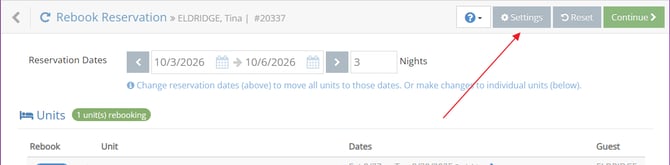
Choose where to add the Extra Week. Use the Preview area on the right: enter Example Dates to see how they'd be rebooked with the option you chose.
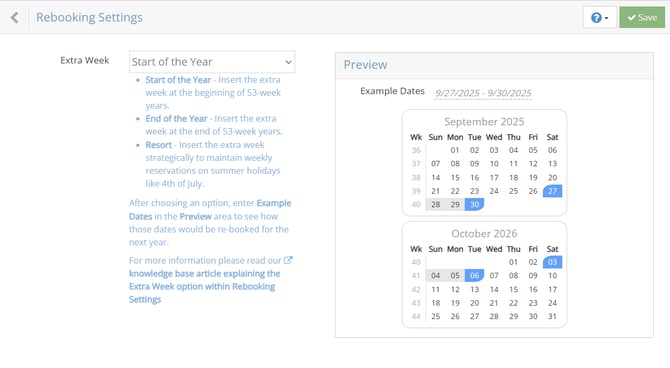
Choose an option
Here's how a reservation arriving Saturday, June 1, 2024 is rebooked each year with Options 1 and 2. (2026 is a 53-week year.)
| Year | Option 1: Start of the Year | Option 2: End of the Year |
|---|---|---|
| 2024 | Sat, June 1 | Sat, June 1 |
| 2025 | Sat, May 31 | Sat, May 31 |
| 2026 (53 weeks) | Sat, June 6 (shifts forward) | Sat, May 30 (no shift yet) |
| 2027 | Sat, June 5 | Sat, June 5 (shifts forward) |
| 2028 | Sat, June 3 | Sat, June 3 |
Option 1: Start of the Year (default)
This is the default setting. In a 53-week year, the extra week goes at the beginning of the year. The first week is skipped, so every reservation rebooked into that year moves forward one week, resetting the cycle until the next 53-week year.
Option 2: End of the Year
The extra week goes at the very end of the 53-week year (its 53rd week). This waits to reset the cycle until the year after the 53-week year.
Option 3: Resort (summer holidays come first)
This option makes sure guests keep their summer holiday weeks every year:
- A guest who books the 4th of July week always gets that week when they rebook, and never departs on the 4th (though they may arrive on it).
- Guests who stay over Memorial Day and Labor Day always keep those holidays too.
The extra week is most often added the week before the 4th of July in 53-week years, but not always. See the Resort Rebooking Calendar (PDF) for the extra weeks from 2020 to 2037.
Watch for the "extra week" guest
Because the extra week usually lands in late June, the guest who stays that week may not be able to rebook it the next year. You'll need to sort that out in those years. For example:
- The guest arriving Saturday, June 20, 2026 rebooks into Saturday, June 26, 2027.
- The guest arriving Saturday, June 27, 2026 (the extra week) is also offered June 26, 2027, but it's already taken, so they may not be able to rebook.
Rebook during check-out
Make rebooking part of every check-out with the Rebook for Next Year option:
- Open the guest's reservation.
- In the Units section, click Check Out for the unit.
- The Check Out Wizard opens with your Check Out Options.
- Turn on Rebook for Next Year (after check-out).
- To make this your standard, click Always use these Check Out Options.
- Click Check Out.
- rezStream Cloud then walks you through rebooking for next year, suggesting dates based on your Rebooking Settings.
Still need help?
Call us at 303-872-0220 x 2 or send us a support request. We're happy to walk you through it.
Related articles