
Move a Reservation
Move a reservation to different dates or units, either by dragging it on the Occupancy Map or from the Reservation screen.
Time needed: about 5 minutes
Watch first
Which way should I use?
| On the Occupancy Map | On the Reservation screen |
|---|---|
| Drag and drop. Moves one unit assignment at a time. | Uses the Move wizard. Moves one or more unit assignments to different units or dates. Best for reservations with several units. |
Part 1: Move a reservation on the Occupancy Map
1Point to the reservation
Move your mouse over the top half of the reservation until the cursor changes to a cross.
2Drag it to the new spot
Click and drag the reservation to where you want it on the Occupancy Map.
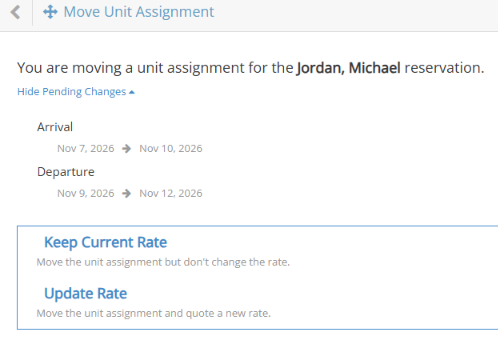
3Review the dates and rate
Check the Arrival and Departure dates, then choose Keep Current Rate or Update Rate.
Part 2: Move a reservation on the Reservation screen
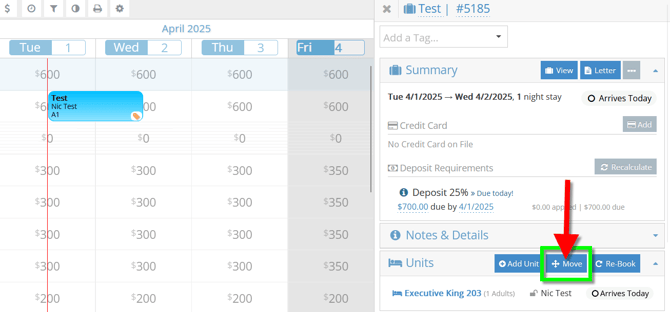
1Click Move
On the Reservation screen, click Move in the Units section.
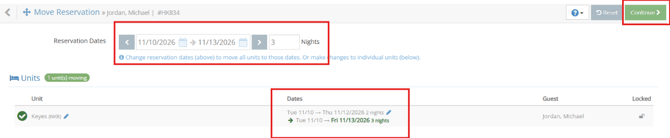
2Choose the new dates
Change the dates, then click Continue.
3Choose the total and save
Keep the Original Total or choose the Updated Total, then click Save.

✓You're done!
The reservation has been moved.
Still need help?
Call us at 303-872-0220 x 2 or send us a support request. We're happy to walk you through it.
Related articles