
Create fees, like a cleaning or resort fee, add them to your rate plans and POS items, and apply them to existing reservations.
Time needed: about 10 minutes
How it works
- Create the fee.
- Add it to a Fee Group. A fee must be in a Fee Group before you can use it.
- Assign the Fee Group to a rate plan or POS item.
On this page
Part 1: Create a fee
1Open Fees
Go to Configuration > Fees.
2Click Add New Fee
Click Add New Fee in the upper right corner.
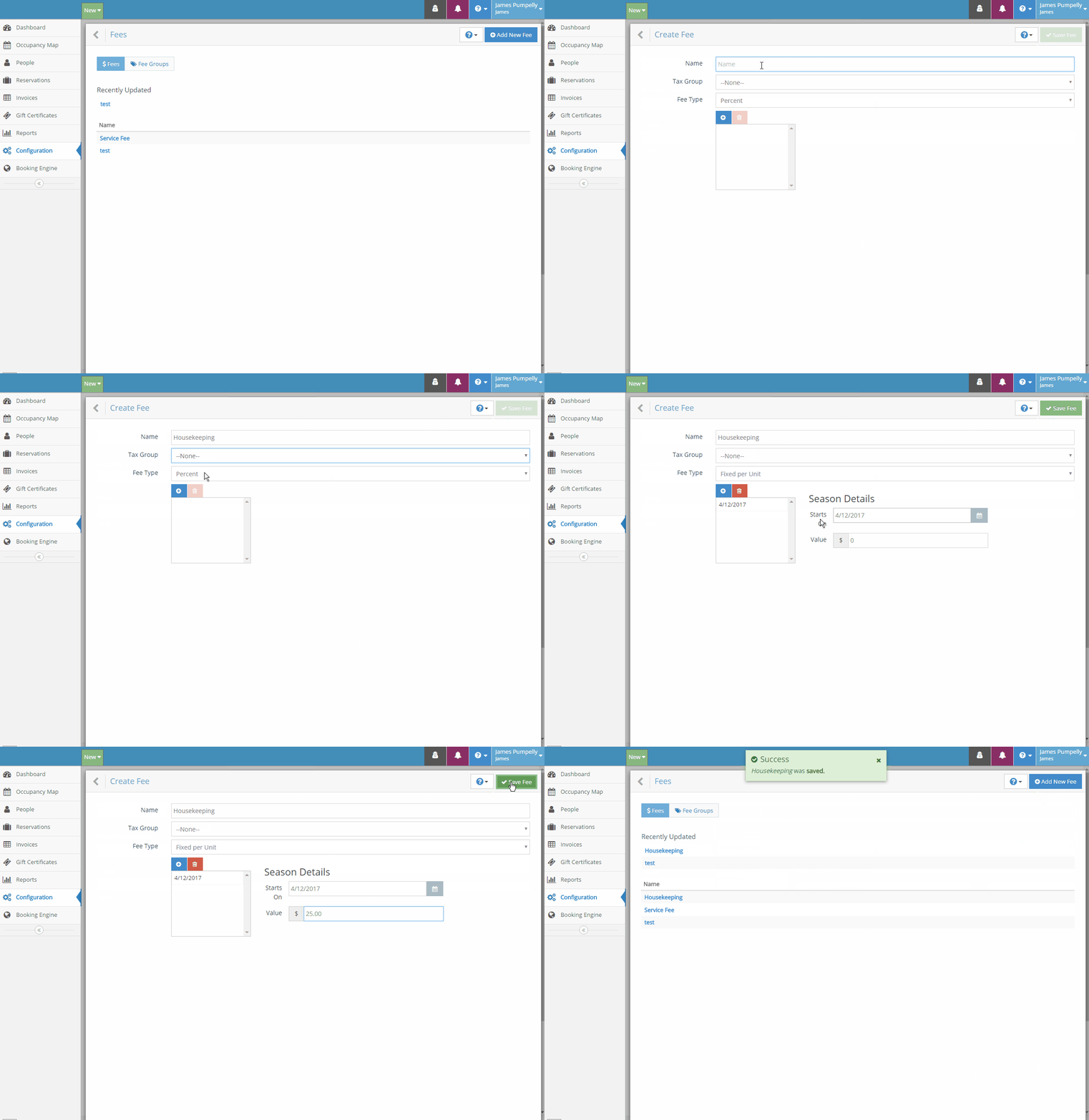
3Fill in the fee details
| Field | What to enter |
|---|---|
| Name | The name of the fee, such as Cleaning Fee. |
| Tax Group | The tax group that applies to the fee. If the fee isn't taxable, leave this blank. |
| Fee Type | Choose Percent, Fixed or Fixed per unit. |
4Add a fee season
- Click the blue + Add New Fee Season button.
- Choose the Starts On date. It's set to today's date unless you change it.
- Enter the Value.
5Save the fee
Click Save Fee.
Part 2: Create a Fee Group
A fee must be added to a Fee Group before you can apply it to a rate plan or POS item.
1Open Fee Groups
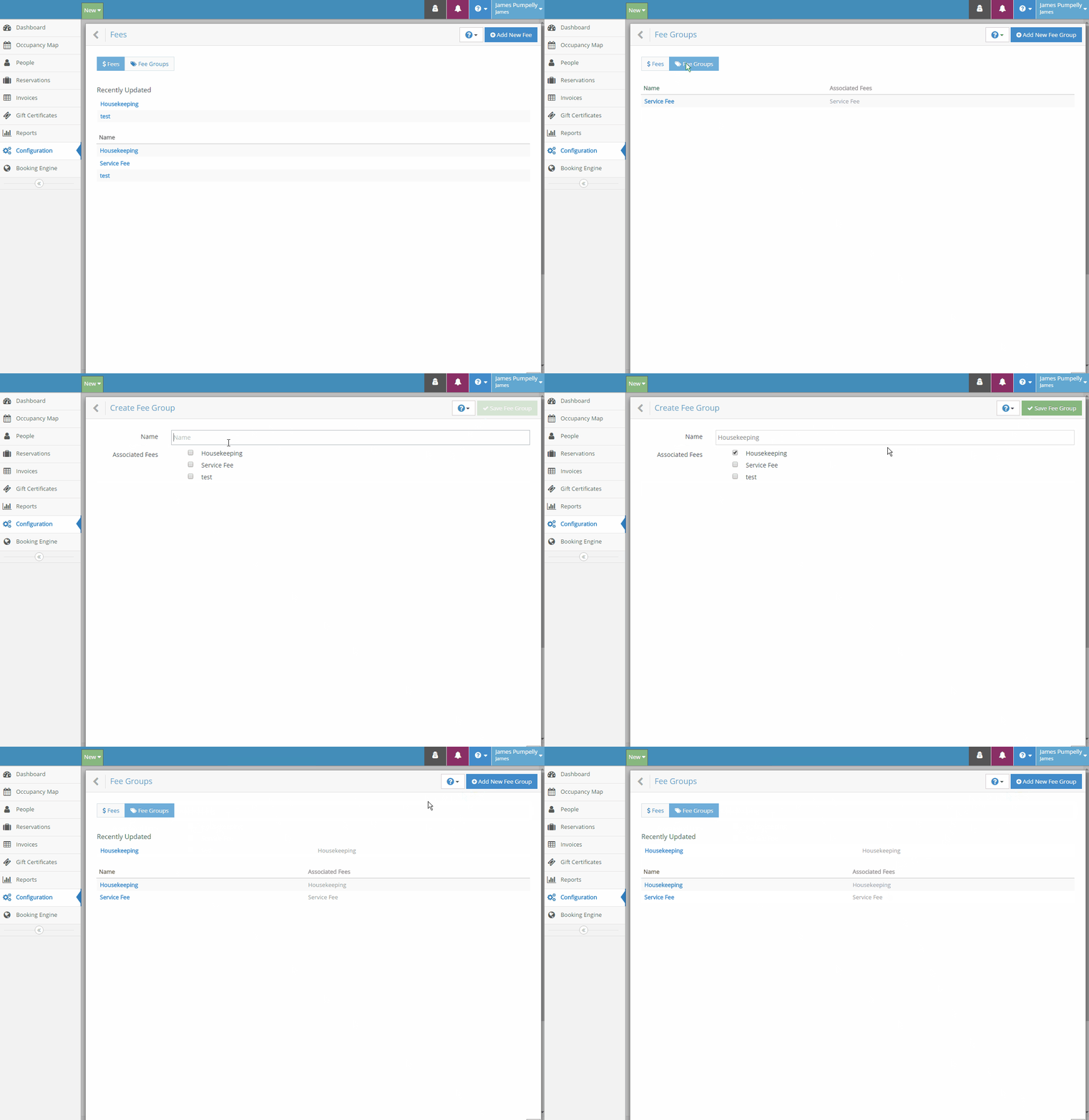
Go to Configuration > Fees > Fee Groups and click Add New Fee Group.
2Name the group, choose fees and save
Enter a Name for the Fee Group, select the fee or fees to include, then click Save.
Part 3: Apply fees to a rate plan
1Open Rate Plans
Go to Configuration > Rate Plans (Unit Types).
2Assign the Default Fee Group
Choose the rate plan, click Edit "rate plan" Settings, and assign your Default Fee Group.

3Save
Click Save.
Part 4: Apply fees to a POS item
1Open POS
Go to Configuration > POS.
2Choose the Fee Group and save
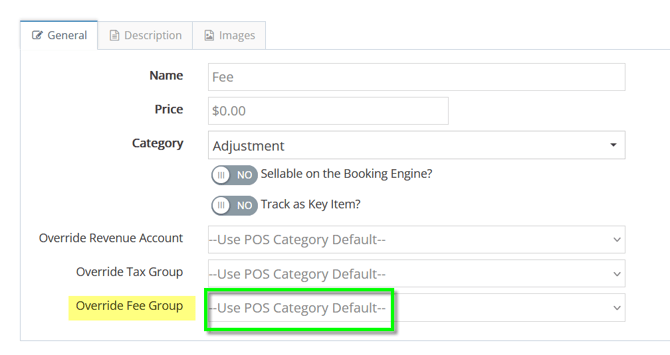
Choose the POS item, select its Override Fee Group, then click Save Item.
Part 5: Add a new fee to existing reservations
Important
A new fee is not added automatically to reservations made before you set it up. rezStream Cloud can recalculate fees already associated with an existing reservation. To update a reservation, follow these steps.
1Open the reservation
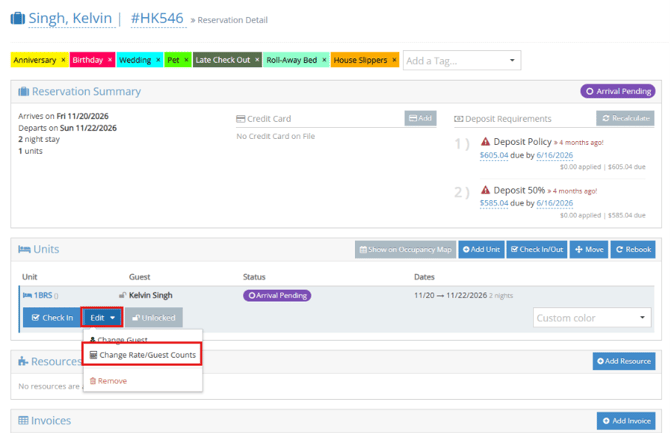
Go to the Reservation tab, choose the reservation and click Edit.
2Click Change Rate/Guest Counts
Click Change Rate/Guest Counts.
3Review the charges
The new fee should now appear if it applies to this reservation. Hover over an amount to see more details.
4Save the reservation
Click Save to update the reservation.
Fees with a future start date
A fee only applies to nights on or after its start date.
Example: a fee starts on January 1, and a guest stays December 28 through January 2. The fee only applies to the nights starting January 1.
Still need help?
Call us at 303-872-0220 x 2 or send us a support request. We're happy to walk you through it.
Related articles