
Waive fees, like cleaning or service fees, the same way you exempt taxes. Anywhere tax exemptions are available, fee exemptions are too.
Time needed: about 5 minutes to read
On this page
- When editing an invoice line item
- When editing a package line item
- When adding a resource to a reservation
- When applying default tax and fee exemptions to an entire invoice
- Open the invoice.
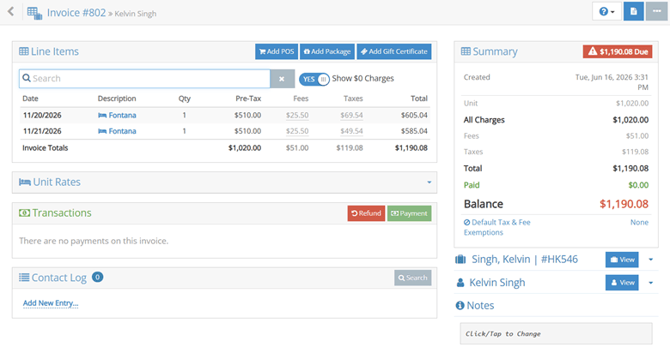
- Find the line item you need to update.
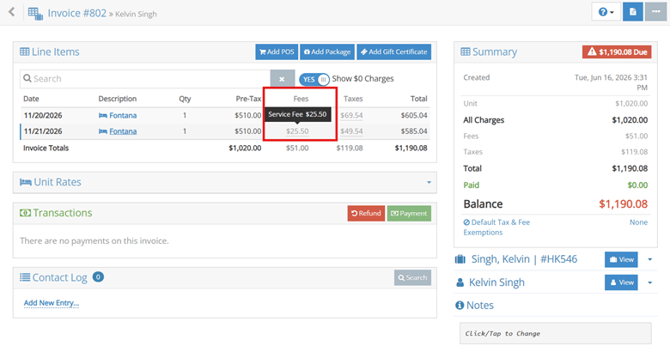
- Click the fee amount to edit it.

- Review the Tax and Fee Exemption options.
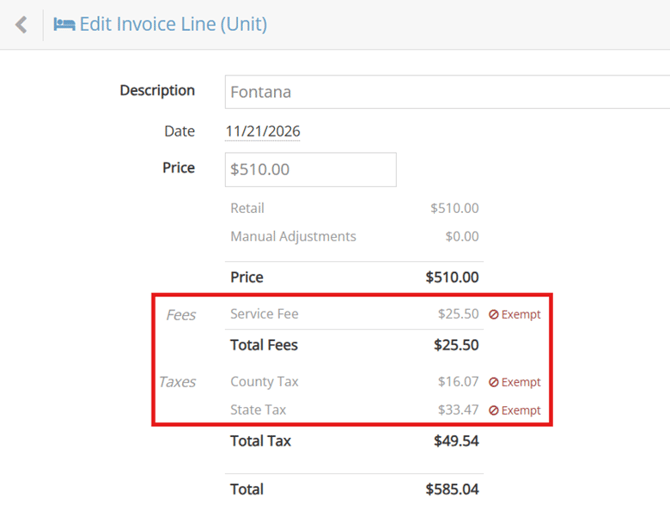
- Click the red Exempt button to remove the fee.
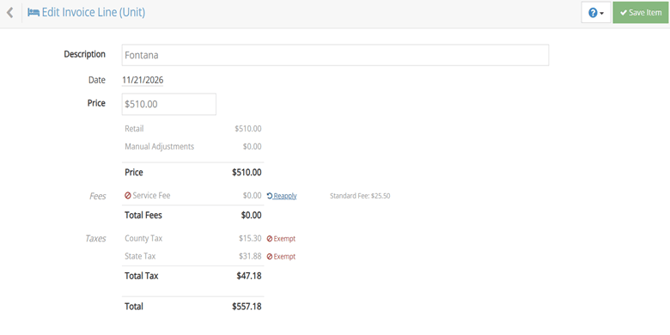
- Click Save Item. The fee exemption now applies to that line item.
- Open the invoice.
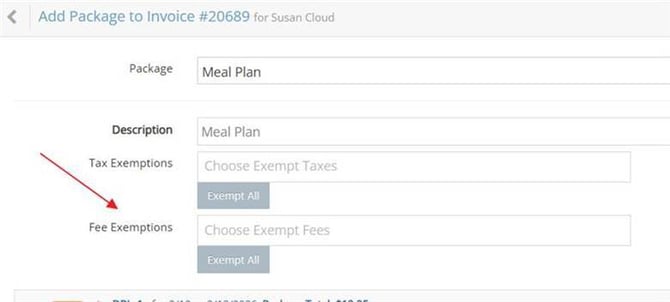
- Find or add a package line item.
- Edit the package line item.
- Select the fee exemption that applies.
- Save your changes. The exemption applies only to that package line item.
- Open the reservation.
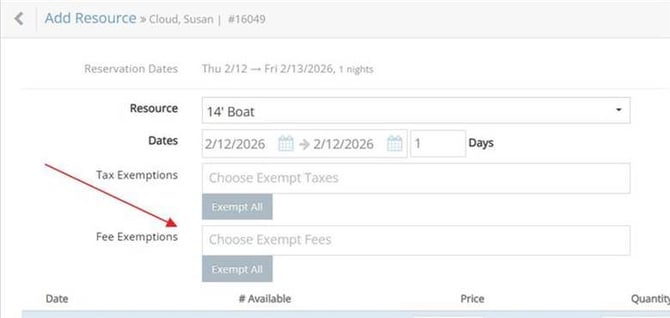
- Add the resource.
- Review the Tax and Fee Exemption options.
- Select the fee exemption that applies.
- Save your changes.
- Open the invoice.
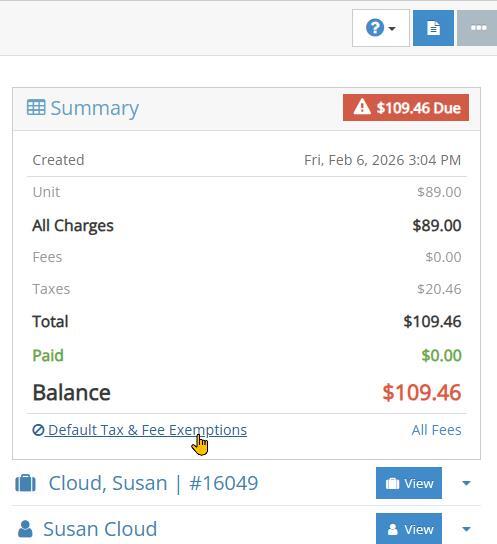
- Select the option for Default Tax & Fee Exemptions.
- Choose the taxes and/or fees that should be exempt.
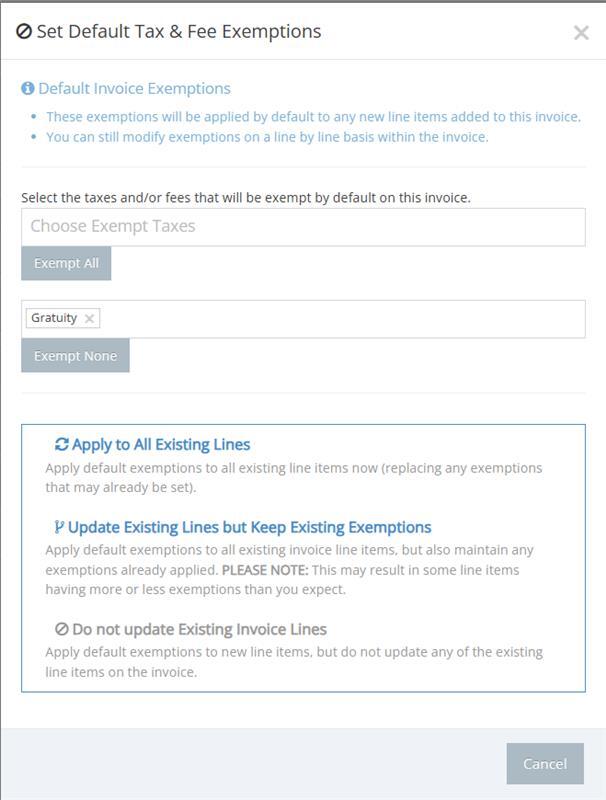
- Choose how the exemption should be applied (see the options below).
| Option | What it does |
|---|---|
| 1. Apply to All Existing Line Items Most common | Applies the exemptions to every existing line item on the invoice. |
| 2. Update Existing Lines but Keep Existing Exemptions | Applies the new exemptions but keeps any you already set on individual line items. Use this if you've customized certain lines and don't want to lose those changes. |
| 3. Do not update Existing Invoice Lines | Leaves existing line items as they are. The exemptions only apply to new items added to the invoice from now on. |
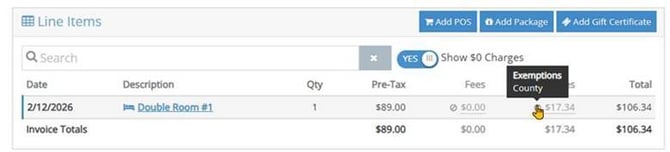
- Look for the exemption icon next to the Daily Tax or Fee total on a line item.
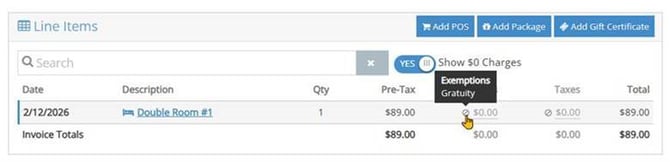
- Hover over the icon to see which taxes or fees were exempted on that line.
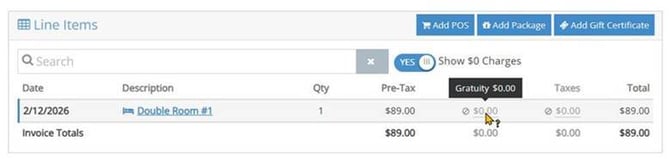
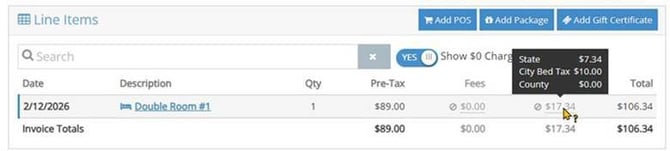
- Hover over the Daily Tax or Fee total for a full breakdown. Exempt taxes and fees show as $0.00, including in reports.
Good to know
There isn't a separate Fee Exemption Report like there is for tax exemptions. Exempted fees still appear in reservation and report details at $0.00, so you can see when an exemption was applied.
- Fee exemptions can be applied to a whole invoice or to individual line items.
- Line items on the same invoice can have different exemptions.
- Always review the invoice afterward to make sure the right fees and taxes show as exempt.
Changes not showing up?
After changing taxes, fees, tax groups, fee groups, rates, POS items or resources, you may need to recalculate. Use Recalculate Taxes and Fees or Recalculate Rates, depending on what you changed. Recalculate Taxes and Fees is under Configuration → Rates and Taxes → Taxes (or Fees).
Still need help?
Call us at 303-872-0220 x 2 or send us a support request. We're happy to walk you through it.
Related articles