
Check a guest in right from the Occupancy Map in just two clicks.
Time needed: about 1 minute
Check in a guest
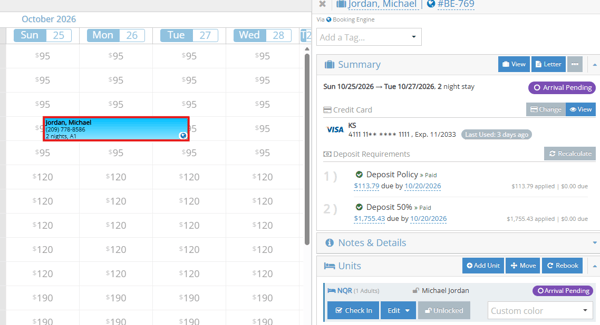
1Select the reservation
On the Occupancy Map, click the guest's reservation. Its details appear on the right side of the page.
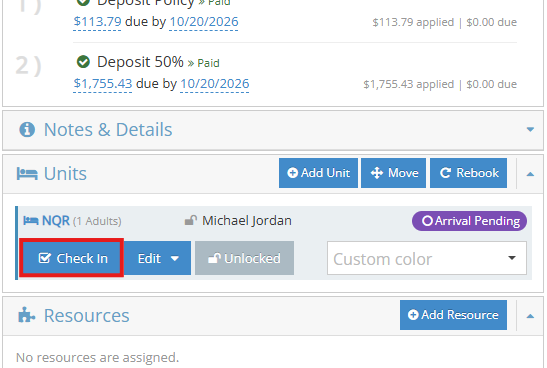
2Click Check In
Click the Check In button to check the guest in.
✓You're done!
The guest is checked in. Here's how to spot checked-in guests on your Occupancy Map.
How to tell a guest is checked in
It depends on how your Occupancy Map is colored.
| If your map is colored by… | You'll see… |
|---|---|
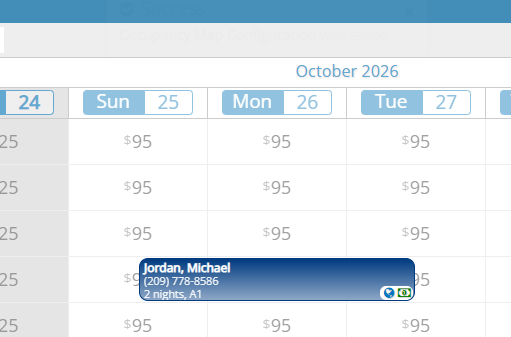
| In-House Status | The reservation changes color automatically (blue in the example below). |
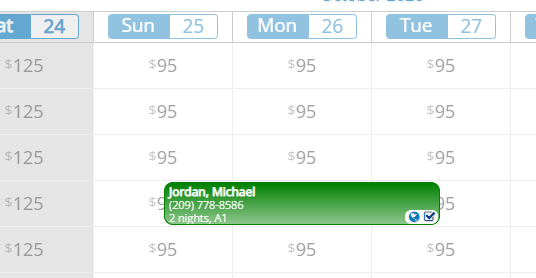
| Payment Status | Colors show payment status, and a checkmark shows the guest is checked in. |
Colored by In-House Status
Colored by Payment Status
Want to change how reservations are colored?
Still need help?
Call us at 303-872-0220 x 2 or send us a support request. We're happy to walk you through it.
Related articles