
Track whether each unit is Clean or Dirty, right from the Occupancy Map.
Time needed: about 5 minutes
Before you start
Turn on Clean/Dirty mode in Occupancy Map Settings → Display Settings. See Customizing the Occupancy Map.
Mark a unit clean or dirty
Each unit on the Occupancy Map has a small icon showing its status. Hover over it to see "Clean" or "Dirty," and click it to switch the status.
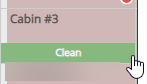
At check-out: when a reservation is checked out, the unit is automatically set to Dirty. It stays Dirty until someone marks it Clean.
Update many units at once
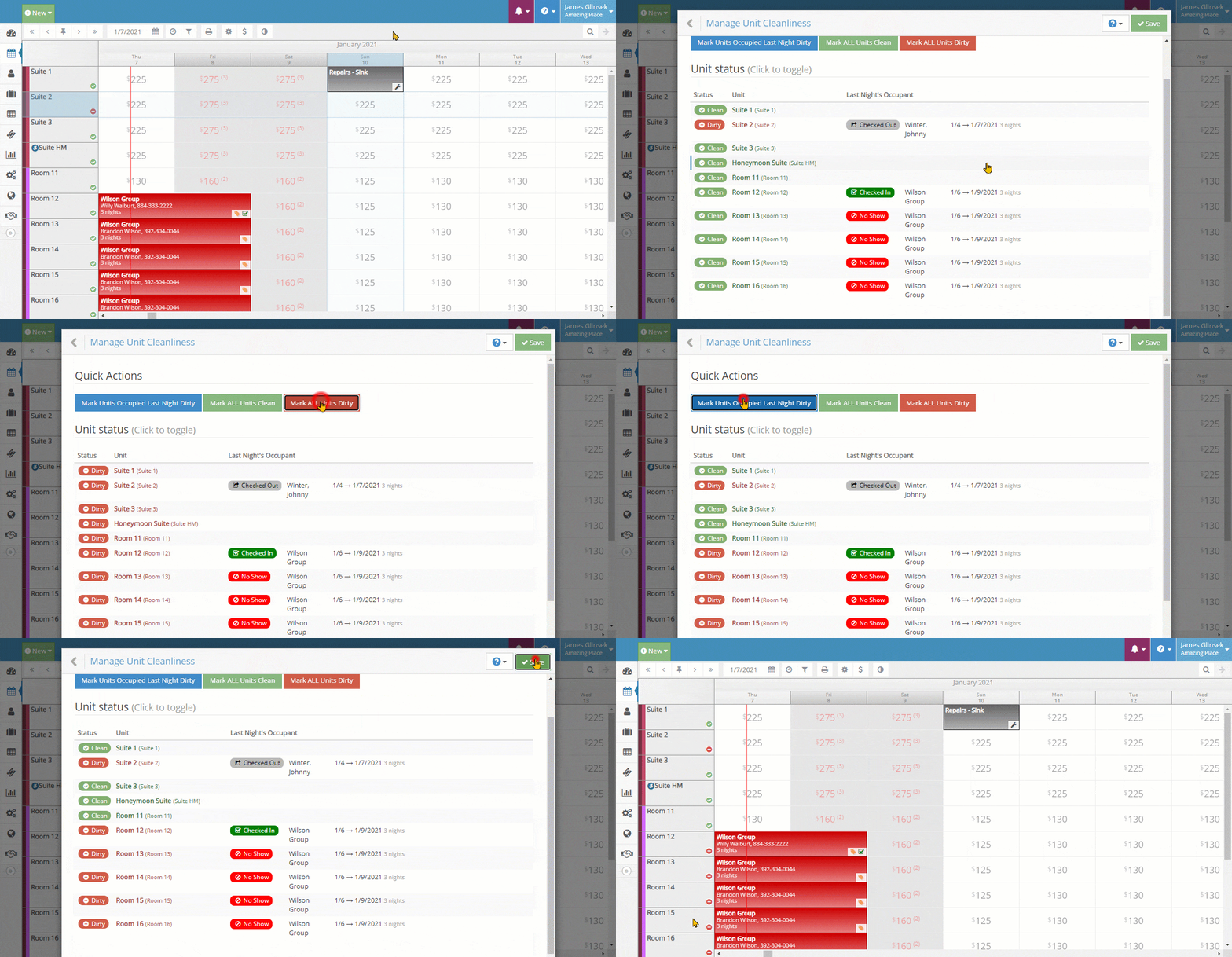
Click Manage Unit Cleanliness on the Occupancy Map toolbar. You'll see every unit's status and assigned guest, and you can update one unit or several at a time.
Three quick buttons let you:
- Mark units that were occupied last night as Dirty
- Mark all units Clean
- Mark all units Dirty
See status on Housekeeping reports
Each unit's Clean/Dirty status also shows on your Housekeeping reports, in the Reporting section.

Still need help?
Call us at 303-872-0220 x 2 or send us a support request. We're happy to walk you through it.
Related articles