
Advanced People Search
Find exactly the guests you're looking for by searching on several details at once, then export the list if you need it.
Includes: a short video and step-by-step examples
Great for things like…
Finding a guest who arrives on the 1st of the month and asked for a limo pickup.
Pulling a list of all your guests from Colorado to send a special offer through your email marketing tool.
Watch first
On this page
Part 1: Open Advanced Search
Advanced Search lives inside the People section.
1Go to Advanced Search
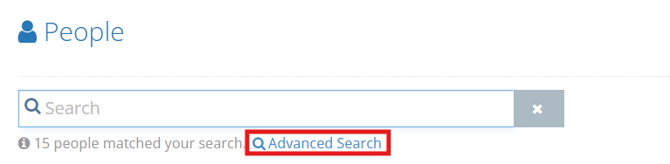
Go to People, then click the Advanced Search link.
Part 2: Search by one detail
Start simple: find people by one piece of information.
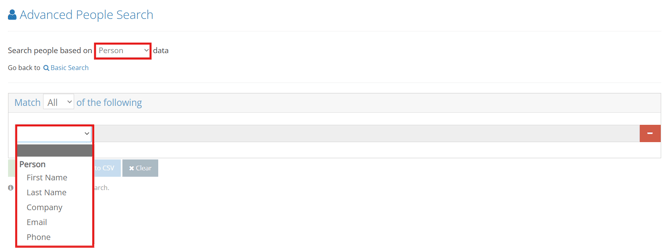
2Choose what kind of information to search
- Person lets you search guest details such as first name, company, phone and public or private notes.
- Reservation lets you search booking details such as arrival date, unit and special requests.
3Set what you're looking for
Choose a field, how it should match, and what to look for. Example: to find everyone with the last name Hebrink, set the search to find people whose last name is Hebrink.

Tip: Not sure how a name is spelled?
Type the first few letters followed by an asterisk (*). For example, Heb* finds every name that starts with "Heb," such as Hebrink or Hebert.
4Run the search
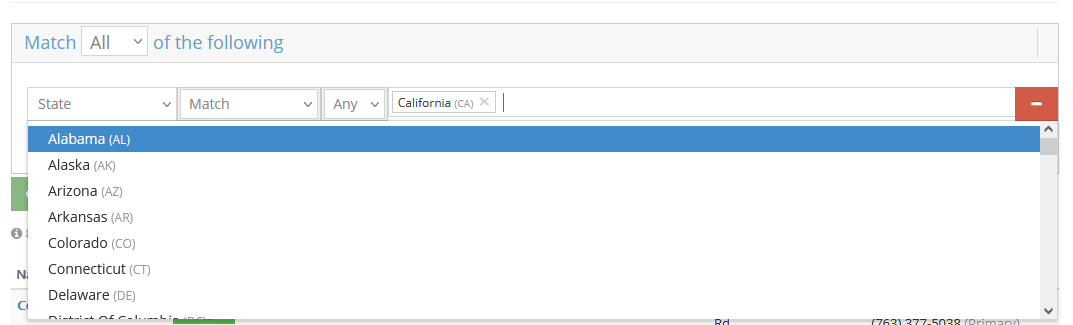
Some fields let you pick from a list. Example: to find everyone with an address in California, select California from the list of states. Then click anywhere outside the box and click Search.
Part 3: Search by several details at once
Add more than one search detail to narrow down your results.
5Add another search detail
Click Search Criterion to add another detail to your search.
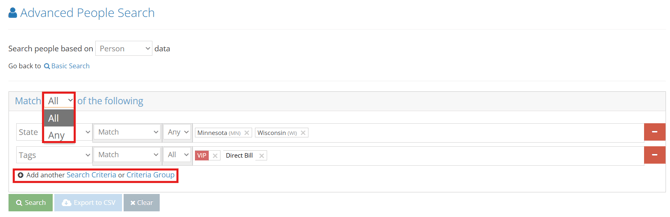
6Choose "Any" or "All"
| Choose | What it does |
|---|---|
| Match Any of the following | Finds people who match at least one detail. You'll get more results. |
| Match All of the following | Finds only people who match every detail. You'll get fewer, more focused results. |
Example: to find everyone who lives in Minnesota or Wisconsin and has both the VIP and Direct Bill tags, add one detail for State and one for Tags, then choose Match All.
No results? Check your "All" setting
Match All applies inside each detail, too. If you search for two states with Match All, the system looks for people with an address in both states at the same time, which usually finds no one.
If your results look wrong or empty, double-check each search detail and your Any/All choice.
Part 4: Build more detailed searches with groups
Groups let you combine searches, like a search inside a search.
7Add a Criteria Group
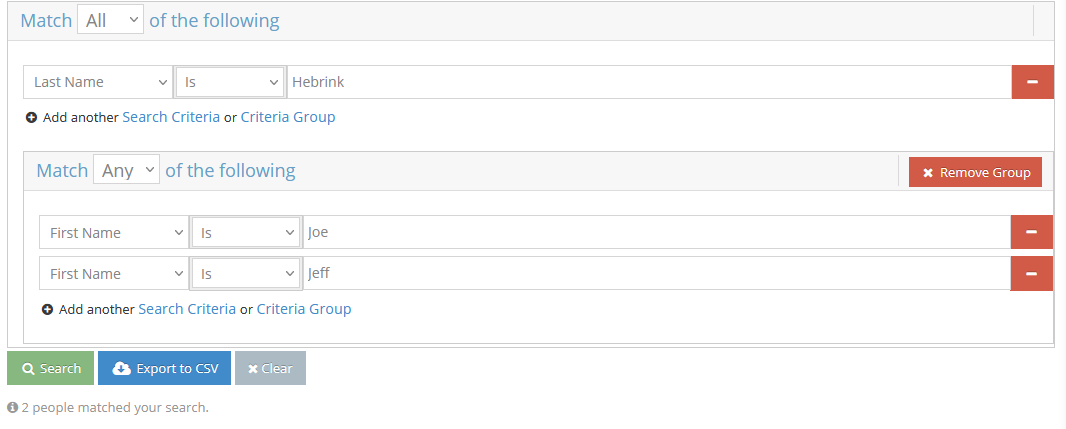
Example: to find everyone with the last name Hebrink whose first name is either Jeff or Joe:
- Set up a search for last name is Hebrink.
- Click Criteria Group to add a group, and set the first search detail to first name Joe.
- Inside the same group, click Search Criterion to add first name Jeff.
✓You're ready to search!
The best way to learn Advanced Search is to try it. Experiment with different searches. You can't break anything, and you may discover useful things about your guests along the way.
Tip: Turn your results into a mailing list
After you search, you can export your results and import them into your email marketing tool. See Export a Contact List to a .CSV File.
Still need help?
Call us at 303-872-0220 x 2 or send us a support request. We're happy to walk you through it.
Related articles