
Combine duplicate guest records into one. All of their reservations, invoices and payments move to the record you keep.
Time needed: about 5 minutes
Merge duplicate contacts
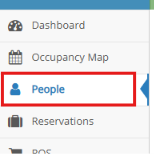
1Open People
Click the People tab.
2Open the record you want to keep
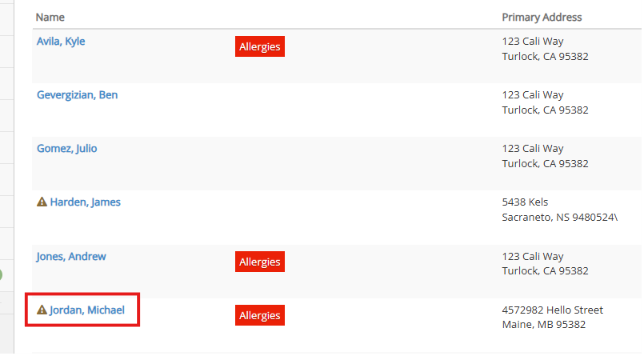
Click the duplicate whose address and general information you want to keep. This becomes the primary record.
Not sure which one to keep?
Choose the record with the most complete, up-to-date information: name, email, phone and mailing address. You can also check which one has the most reservation history, since that's likely the one used most.
3Start the merge
Click the gray icon in the upper right corner and choose Merge Duplicate People, or click the orange Merge Duplicates button.

4Review the duplicates
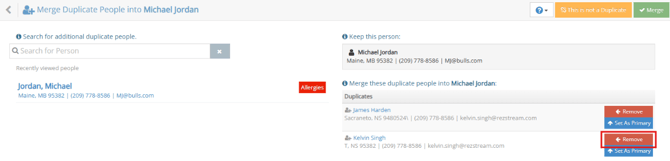
rezStream finds possible duplicates with a matching name, email or phone number, and lists them on the right. Click Remove next to any you don't want to merge.
5Add any missing duplicates (optional)
Don't see all the duplicates? Use the search box on the left to find and add them.
6Click Merge
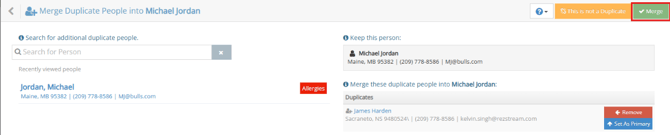
When every duplicate you want to combine is listed, click Merge in the upper right corner.
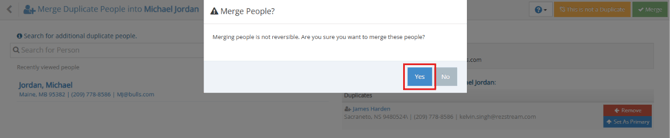
7Confirm
Review the contacts in the confirmation window, then click Confirm.
This can't be undone. Double-check the list before you confirm.
What happens after you merge
- The duplicates are combined into the primary record you chose in Step 2, and removed from your contacts list.
- All their reservations, invoices and payments move to the primary record. No booking or payment history is lost.
Still need help?
Call us at 303-872-0220 x 2 or send us a support request. We're happy to walk you through it.
Related articles